Interactive Figures
One of the guiding principles of Music Theory 21c is to make the most of the pedagogical benefits of the web format by not only providing audio and video examples within the flow of the text, but to give the reader opportunities to interact with the text to try things out and explore new concepts.
The highest level of interaction in Music Theory 21c consists of special JavaScript classes that appear on the page as figures, but which are actually web applications with fully functional and accessible graphic interfaces. These classes, called inators, are written as extensions of the Inator parent class stored in main.js and stored as individual .js files in /js/inators/ directory.
Inators are developed in "vanilla" JavaScript. Developers should also familiarize themselves with Yotam Mann's excellent JavaScript library Tone.js, which is used for most audio functionality.
The guide below uses an imaginary inator called "sprocket" to illustrate concepts and structures.
Necessary Components
To create an inator and include it in a page of Music Theory 21c, the following components must be present:
- The primary inator file,
sprocket.js, located in the/js/inators/directory - A line in the
inatorsRegistryfunction ofmain.jsin the following format:
case 'sprocket': return new Sprocket(obj); break;
<head> element of any HTML file which will include the inator in the following format:<script src='../../js/inators/sprocket.js'></script>
<canvas> object where the inator is to appear in the page, in the following format:<canvas role='application' aria-label='Description of interactive
element, including directions on all keyboard commands'
class='sprocket inator'></canvas>
A single inator can be used on multiple pages, and can be used multiple times in the same page. For the latter, multiple <canvas> should be used, but only one <script> tag is required.
Inator Structure
At a minimum, the primary inator file sprocket.js must contain the code below:
class Sprocket extends Inator {
    constructor(whichCanvas) {
        super(whichCanvas, { } );
        this.setAriaLabel("Accessible description");
        this.draw();
    }
    powerOn() { }
    powerOff() { }
    draw() { }
}
In practice, the second parameter of super() should include handlers for user interaction like mouse clicks and keypresses, further initialization code should be included in the constructor, and the draw() function should contain code which creates the graphic user interface. Other functions beyond the four shown here can be added to the class, and other classes can be included alongside the base Sprocket class as necessary.
This
As JavaScript classes, inators should be self-contained and not make use of any global variables or functions. Inator functions, whether defined in the inator or in the parent class, are called using the this keyword, as shown in the function definitions in this guide. Variables should either be local to the a specific function within the inator — for example, an index variable in a for loop — or should be declared during initialization as a child of this.
The inator's parent window or document, or the canvas object itself, can be accessed through the variables this.myWindow, this.myDocument, and this.myCanvas, respectively.
The Graphic Interface
Inators use an HTML <canvas> as their primary interface. The interface is generated in the draw() function of the inator, which is called at the end of the constructor to display the interface after the page loads. Additionally, draw() should be called anytime the interface needs to be updated, which can in response to a user event or, in the case of animations, many times per second.
The default size of the inator canvas is specified in main.css as a rectangle with a proporation of 1:2.5. Inators of other sizes can be created by adding entries to main.css: common sizes used in Music Theory 21c are shown in Figure 1.
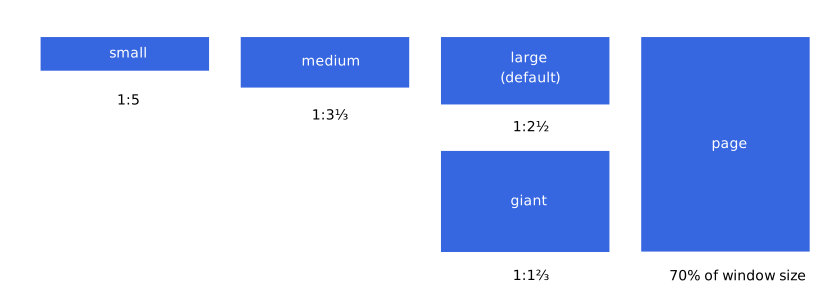
main.css.Coordinate Systems
In the functions below, all parameters referring to position or size are given as percentage of the canvas' size, ensuring that the inator's interface scales properly with the surrounding text. left, width and x parameters are given as a percentage of the canvas' width, while top, height and y parameters, as well as text size parameters, are percentages of the canvas' height. In most cases, other size-related parameters, such as radius and lineWidth, are given as percentage of canvas width to promote consistency between different inators.
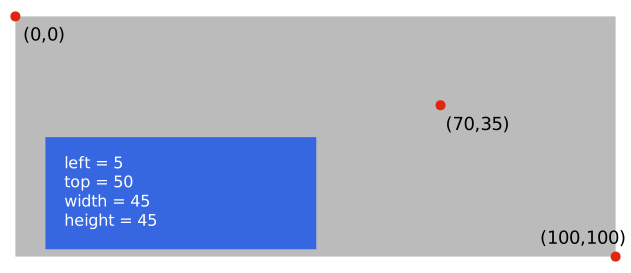
left,top) format; the blue rectangle is shown with position and size parameters.Position and size parameters can be expressed as integers or as decimals. In function descriptions below, percentage of canvas width is abbreviated as pw units, and percentage of canvas height as ph units.
Prebuilt Controls
To simplify coding, Music Theory 21c provides a some controls that can be added to the canvas with a single line of code. To use these controls, their initialization statement must be called from the inator's constructor (see "Initialization" below). No other drawing or event handling code is required; once initialized, the Inator parent class handles it automatically.
Sliders
Sliders allow the user to select from a range of values by moving a knob along a path, similar to faders on audio mixers.
Inator.addSlider()
Syntax
Parameters
left(pw units) The location of the left edge of the slider.
top(ph units) The location of the top edge of the slider.
width(pw units) The width of the slider area. If width is larger than height, the slider will be oriented horizontally and centered vertically in the control's height.
height(pw units) The height of the slider area. If height is larger than width, the slider will be oriented vertically and centered horizontally in the control's width.
initialValue(number) The initial setting of the slider. The value should be between 0 and 100, inclusive. 0 represents the leftmost position for horizontally-oriented sliders and the bottommost position for vertically-oriented sliders.
enabled(boolean) Whether or not the slider is enabled initially. When disabled, the slider appears grayed out and will not respond to user interaction.
callbackFunction(function) A function that is called when the slider's value is changed, either through direct user interaction or programmatically with setSlider. The function is passed one parameter, value, a number from 0 to 100 that reflect's the slider's new position. Note that in callback functions, the value of this will refer to the inator object.
Return Value
sliderIndexAn integer which is unique for all sliders in the inator, used to specify the slider when using functions like setSlider().
Description
Sliders provide a means for users to adjust values across a scale. All sliders return values of 0 to 100; the callback function can scale or transpose this value to meet the current needs. If it is important for the user to be aware of the numeric value of the slider, the calculated value, rounded appropriately, should be displayed as text near the slider.
Sliders set, disabled or enabled programmatically using the functions setSlider(), disableSlider() and enableSlider(), respectively.
For a simpler, more compact slider, use addSmallSlider().
Accessibility
Because sliders are graphic controls, keyboard shortcuts should be provided to set sliders to specific values. In most cases, this can be done by selecting a range of representative values such as quartiles or deciles, assigning a key to each, and setting the values using setSlider(). Feedback should be given using setAriaStatus(); for example, "volume set to twenty percent."
Inator.addSmallSlider()
Syntax
Parameters
left(pw units) The location of the left edge of the slider.
top(ph units) The location of the top edge of the slider.
width(pw units) The width of the slider area. If width is larger than height, the slider will be oriented horizontally and centered vertically in the control's height.
height(pw units) The height of the slider area. If height is larger than width, the slider will be oriented vertically and centered horizontally in the control's width.
initialValue(number) The initial setting of the slider. The value should be between 0 and 100, inclusive. 0 represents the leftmost position for horizontally-oriented sliders and the bottommost position for vertically-oriented sliders.
enabled(boolean) Whether or not the slider is enabled initially. When disabled, the slider appears grayed out and will not respond to user interaction.
callbackFunction(function) A function that is called when the slider's value is changed, either through direct user interaction or programmatically with setSlider. The function is passed one parameter, value, a number from 0 to 100 that reflect's the slider's new position. Note that in callback functions, the value of this will refer to the inator object.
Return Value
smallSliderIndexAn integer which is unique for all sliders in the inator, used to specify the slider when using functions like setSlider().
Description
Small sliders are functionally identical to regular sliders, but they are more compact and less detailed. They are considered separate controls by the Inator parent class, and can be set, disabled or enabled with the functions setSmallSlider(), disableSmallSlider() and enableSmallSlider(), respectively.
For a larger, more detailed slider, use addSlider().
Accessibility
Because sliders are graphic controls, keyboard shortcuts should be provided to set sliders to specific values. In most cases, this can be done by selecting a range of representative values such as quartiles or deciles, assigning a key to each, and setting the values using setSmallSlider(). Feedback should be given using setAriaStatus(); for example, "volume set to twenty percent."
Inator.setSlider()
Syntax
Parameters
sliderIndex(number) The index of the slider whose value is to be set, as returned by Inator.addSlider().
(number) A value between 0 and 100 to which the slider will be set.
Return Value
This function does not return a value.
Description
Programmatically sets the position of the slider with index sliderIndex to the value passed in value.
Inator.setSmallSlider()
Syntax
Parameters
smallSliderIndex(number) The index of the slider whose value is to be set, as returned by Inator.addSmallSlider().
(number) A value between 0 and 100 to which the slider will be set.
Return Value
This function does not return a value.
Description
Programmatically sets the position of the slider with index smallSliderIndex to the value passed in value.
Inator.disableSlider()
Syntax
Parameters
sliderIndex(number) The index of the slider to disable, as returned by Inator.addSlider().
Return Value
This function does not return a value.
Description
Disables the slider. When disabled, the slider is greyed out and will not respond to user interaction.
Inator.disableSmallSlider()
Syntax
Parameters
smallSliderIndex(number) The index of the slider to disable, as returned by Inator.addSmallSlider().
Return Value
This function does not return a value.
Description
Disables the slider. When disabled, the slider is greyed out and will not respond to user interaction.
Inator.enableSlider()
Syntax
Parameters
sliderIndex(number) The index of the slider to enable, as returned by Inator.addSlider().
Return Value
This function does not return a value.
Description
Enables the slider. When enabled, the slider is shown as being active and will respond to user interaction.
Inator.enableSmallSlider()
Syntax
Parameters
smallSliderIndex(number) The index of the slider to enable, as returned by Inator.addSmallSlider().
Return Value
This function does not return a value.
Description
Enables the slider. When enabled, the slider is shown as being active and will respond to user interaction.
Power Buttons
A power button is a way for users to manually control whether or not an inator is actively operating. Power buttons are optional, and only one power button is necessary for a single inator. For more information about Inator power, see "Power" in the "Initialization" section below.
Inator.addPowerButton()
Syntax
Parameters
left(pw units) The location of the left edge of the power button.
top(ph units) The location of the top edge of the power button.
Return Value
addPowerButton() does not return a value.
Description
Power buttons control the built-in power setting of the inator, and will change appearance to reflect the current power setting if it is changed programmatically.
For a comprehensive description of Inator power, see "Power" in the "Initialization" section below.
Sound Buttons
A sound button can optionally be used to control the audio functionality of an inator that provides functionality even when sound is disabled. When pressed, a sound button will automatically call the inator's soundOn() or soundOff() functions and toggle a built-in Inator Sound property which can be checked using Inator.sound() and changed programmatically using Inator.setSound().
Sound buttons do not automatically control sound in the inator; to make them functional, call Tone.start() from within the soundOn() function and Tone.stop() from within the soundOff() function. For more information about audio in inators, see the "Audio" section below.
Inator.addSoundButton()
Syntax
Parameters
left(pw units) The location of the left edge of the sound button.
top(ph units) The location of the top edge of the sound button.
Return Value
addSoundButton() does not return a value.
Description
Sound buttons control the built-in sound property of the inator, and will change appearance to reflect the current sound setting if it is changed programmatically.
For a comprehensive description of Inator audio, see the "Audio" section below.
Inator.sound()
Syntax
Parameters
This function does not take any parameters.
Return Value
soundIsOn(boolean) Whether or not Inator Sound is currently on.
Description
Returns true if Inator Sound is currently on. Inator Sound can be turned on or off by the user using a Sound Button, or programmatically using Inator.setSound(). Inator Sound has no effect other than showing status in Sound Buttons, but can be used to give the user control over audio used by the inator.
Inator.setSound()
Syntax
Parameters
engageSound(boolean) Whether or not Inator Sound should be turned on.
Return Value
This function does not return a value.
Description
Sets the current status of Inator Sound. Inator Sound can also be turned on or off by the user using a Sound Button. Inator Sound has no effect other than showing status in Sound Buttons, but can be used to give the user control over audio used by the inator.
Keyboards
The Inator class provides functional on-screen piano keyboards using the addKeyboard statement. These keyboards respond to user clicks, provide visual feedback, and can easily be connected built-in synthesizers to play pitches.
Inator.addKeyboard()
Syntax
Parameters
left(pw units) The location of the left edge of the keyboard.
top(ph units) The location of the top edge of the keyboard.
width(pw units) The width of the keyboard. The keyboard will be drawn so that the given area is filled with properly proportioned keys. If a value larger than zero is passed for numWhiteKeys, this parameter will be ignored.
height(pw units) The height of the keyboard. The keyboard will be drawn so that the given area is filled with properly proportioned keys.
startingNote(number) The MIDI value for the note at the left end of the keyboard.
enabled(boolean) Whether or not the keyboard is enabled initially. When disabled, the keyboard appears grayed out and will not respond to user interaction.
noteOnCallbackFunction(function) A function that is called when a key is pressed by the user. The function is passed one parameter, midiNote, which represents the MIDI value of the note pressed. Note that in callback functions, the value of this will refer to the inator object.
(function) A function that is called when a key is released by the user. The function is passed one parameter, midiNote, which represents the MIDI value of the note released, but because the keyboard is monophonic, it can be assumed that the note being released is the one which was most recently pressed. Note that in callback functions, the value of this will refer to the inator object.
(number) The number of white keys to include in the keyboard. This parameter is optional; if a positive nonzero value is passed, it supersedes the value passed in width. If omitted, it defaults to 0, and the width value will be observed.
isPolyphonic(boolean) Whether or not the keyboard should allow multiple notes to be pressed at once. This parameter is optional; if omitted, it defaults to false.
(boolean) Whether or not the keys of the keyboard will highlight when pressed. This parameter is optional; if omitted, it defaults to true.
Return Value
keyboardIndexAn integer which is unique for all keyboards in the inator, used to specify the keyboard when using functions like enableKeyboard().
Description
Keyboards provide an interface for users to play notes using the mouse. When clicked, each key changes color to provide visual feedback, and the keyboard supports glissandos played by dragging the mouse over the keys.
If startingNote corresponds to a black key, the keyboard's lowest note will be the next higher white key, which will not contain a left-side notch, similar to A0 on most piano keyboards.
Keyboards can be disabled or enabled using the disableKeyboard() and enableKeyboard() functions, and keys can be pressed and released programmatically using pressKeyboardKey() and releaseKeyboardKey() functions, all of which require the keyboardIndex value returned by the initialization statement.
The midiToFreq() function is useful for converting the midiNote passed to the callback functions into a frequency value for use with synthesizer functions.
Accessibility
Because keyboards are graphic controls, keyboard shortcuts should be provided. For consistency, it is recommended to use Z, X, C, V, B, N and M as the notes C4 through B4, with S, D, G, H and J as C#, D#, F#, G# and A#, respectively. To do so, keydown handlers should call the function specified in noteOnCallbackFunction and keyup handlers should call noteOffCallbackFunction. If the keyboard is connected to a synthesizer to play pitches, it is not necessary to provide feedback using setAriaStatus().
Inator.disableKeyboard()
Syntax
Parameters
keyboardIndex(number) The index of the keyboard to disable, as returned by Inator.addKeyboard().
Return Value
This function does not return a value.
Description
Disables the keyboard. When disabled, the keyboard is greyed out and will not respond to user interaction.
Inator.enableKeyboard()
Syntax
Parameters
keyboardIndex(number) The index of the keyboard to enable, as returned by Inator.addKeyboard().
Return Value
This function does not return a value.
Description
Enables the keyboard. When enabled, the keyboard is shown as being active and will respond to user interaction.
Inator.pressKeyboardKey()
Syntax
Parameters
keyboardIndex(number) The index of the keyboard on which to press a key, as returned by Inator.addKeyboard().
(number) The MIDI value of the note to be pressed.
Return Value
This function does not return a value.
Description
Programmatically "presses" the key indicated by midiNote on the keyboard. Causes visual feedback on the keyboard as if the key were pressed by the pointer, and calls the function passed as noteOnCallbackFunction to addKeyboard().
Inator.releaseKeyboardKey()
Syntax
Parameters
keyboardIndex(number) The index of the keyboard on which to release a key, as returned by Inator.addKeyboard().
(number) The MIDI value of the note to be released.
Return Value
This function does not return a value.
Description
Programmatically "releases" the key indicated by midiNote on the keyboard. Causes visual feedback on the keyboard as if the key were released by the pointer, and calls the function passed as noteOffCallbackFunction to addKeyboard().
Inator.fillKeyboardKey()
Syntax
Parameters
keyboardIndex(number) The index of the keyboard on the key to be filled, as returned by Inator.addKeyboard().
(number) The MIDI value of the key to be filled.
fillColor(string) The color, as a hexadecimal RGB string, with which the key will be filled.
Return Value
This function does not return a value.
Description
Fills the given key with the color passed as fillColor.
Inator.clearKeyboardKey()
Syntax
Parameters
keyboardIndex(number) The index of the keyboard on the key to be cleared, as returned by Inator.addKeyboard().
(number) The MIDI value of the key to be cleared.
Return Value
This function does not return a value.
Description
Clears any fill color added by Inator.fillKeyboardKey() to the key passed in midiNote.
Inator.markKeyboardKey()
Syntax
Parameters
keyboardIndex(number) The index of the keyboard on the key is to be marked, as returned by Inator.addKeyboard().
(number) The MIDI value of the key to be marked.
markColor(string) The color, as a hexadecimal RGB string, with which the key will be marked.
Return Value
This function does not return a value.
Description
Marks the given key with the small circle filled with the color passed as markColor.
Inator.unmarkKeyboardKey()
Syntax
Parameters
keyboardIndex(number) The index of the keyboard on the key is to be cleared, as returned by Inator.addKeyboard().
(number) The MIDI value of the key to be cleared.
Return Value
This function does not return a value.
Description
Removes the mark added by Inator.markKeyboardKey() to the key passed in midiNote.
Staves
The Inator class provides functions to facilitate drawing staff notation in an inator using the addStaff statement and associated functions.
Inator.addStaff()
Syntax
Parameters
left(pw units) The location of the left edge of the staff.
top(ph units) The location of the top edge of the staff.
width(pw units) The width of the staff.
height(pw units) The height of the staff.
clef(string) The type of clef to use. Supported values are 'treble', 'alto', 'tenor', 'bass' and 'unpitched'. Passing an empty string will produce a staff with no clef. This parameter is optional; if omitted, the default is an empty string.
(number) A number representing the number of accidentals to include in a standard key signature. A positive number will produce a sharp key signature, a negative number will produce a flat key signature, and 0 produces no key signature. This parameter is optional; if omitted, it defaults to 0.
(boolean) Whether or not the staff is visible when the inator is loaded. This parameter is optional; if omitted, it defaults to true.
(string) The color with which the staff will be drawn. This parameter is optional; if omitted, it defaults to Inator.notationFigureColor, the standard notation figure color, which should be black regardless of the user's current dark mode setting.
Return Value
staffIndex(number) An integer which is unique for all staves in the inator, used to specify the staff when using functions like addNote().
Description
Staves facilitate the addition of staff notation in an inator. To include staff notation in an inator, the addStaff() statement should be called to create the staff lines, clef and key signature, and the index number returned by the addStaff() should be passed to helper functions like addNote() to add further symbols to the staff. After using the visible parameter to indicate initial visibility, staves can be shown or hidden using the showStaff() and hideStaff() functions.
While staff notation is considered by many musicians to be a standard form of notation, developers should strive to counteract systemic bias and consider other notational systems, such as lead sheet notation, DAW piano roll notation, or braille music notation if and when appropriate.
Inator.addNote()
Syntax
Parameters
staffIndex(number) The index of the staff to which the note will be added, as returned by Inator.addStaff().
(number) The horizontal position on the staff where the center of the note will be placed, measured from the left edge of the staff in units equal to the distance between two adjacent staff lines.
staffY(number) The vertical staff position where the note will be placed. A value of 0 indicates the center line of the staff, positive values indicate diatonic steps above the center line, and negative values indicate diatonic steps below the center line.
(string) The type of note to place. Supported values are 'doubleWhole', 'doubleWholeSquare', 'whole', 'half', 'halfStemless', 'quarter', 'quarterStemless', 'eighth', 'sixteenth', 'thirtySecond', 'sixtyFourth', 'oneHundredTwentyEighth', 'x', 'xStemless', 'triangle' and 'triangleStemless'.
(number) The number of dots to place after the note. This parameter is optional; if omitted, it defaults to 0.
(string) The type of accidental to place to the left of the note. Supported values are 'flat', 'doubleFlat', 'natural', 'sharp', 'natural', and an empty string, indicating no accidental. This parameter is optional; if omitted, it defaults to an empty string.
(number, optional) An integer indicating the direction of the stem of the note. If this parameter is positive, the step will point upward, and if it is negative it will point downward. If the parameter is 0, the stem will point the appropriate direction based on the location of the staff; upward for lower pitches and downward for higher pitches. This parameter is optional; if omitted, it defaults to 0, indicating automatic stem placement based on location.
(string, optional) The color with which to display the note. This parameter is optional; if omitted, it defaults to Inator.notationFigureColor, the default notation color, which is normally black regardless of the user's dark mode setting.
(number, optional) An additional horizontal offset to use when drawing any necessary accidental, expressed in units equal to the distance between two adjacent staff lines. This parameter is optional; if omitted, it defaults to 0, placing the accidental at the standard distance from the notehead.
Return Value
noteheadWidth(number) The width of the note placed, expressed in units equivalent to the vertical distance between two adjacent staff lines.
Description
Adds a note to the staff indicated by staffIndex. The horizontal position is indicated by staffX in staff space units from the left edge of the staff, and the vertical position is indicated by staffY as diatonic steps above or below the center line of the staff. The parameter noteType indicates the type of note to be placed, and accidentals and dots can be added with the optional parameters accidental and numberOfDots. Stems and flags, if present, are added to the note in accordance with standard notational practice.
Inator.addMIDINote()
Syntax
Parameters
staffIndex(number) The index of the staff to which the note will be added, as returned by Inator.addStaff().
(number) The horizontal position on the staff where the center of the note will be placed, measured from the left edge of the staff in units equal to the distance between two adjacent staff lines.
midiNote(number) An integer representing the pitch of the note to display in MIDI format, where C4 = 60.
useSharps(boolean) Whether or not to notate chromatic notes as sharped notes. If this parameter is false, chromatic notes will be notated as flatted notes.
(string) The type of note to place. Supported values are 'doubleWhole', 'doubleWholeSquare', 'whole', 'half', 'halfStemless', 'quarter', 'quarterStemless', 'eighth', 'sixteenth', 'thirtySecond', 'sixtyFourth', 'oneHundredTwentyEighth', 'x', 'xStemless', 'triangle' and 'triangleStemless'.
(number) The number of dots to place after the note. This parameter is optional; if omitted, it defaults to 0.
(number, optional) An integer indicating the direction of the stem of the note. If this parameter is positive, the step will point upward, and if it is negative it will point downward. If the parameter is 0, the stem will point the appropriate direction based on the location of the staff; upward for lower pitches and downward for higher pitches. This parameter is optional; if omitted, it defaults to 0, indicating automatic stem placement based on location.
(string, optional) The color with which to display the note. This parameter is optional; if omitted, it defaults to Inator.notationFigureColor, the default notation color, which is normally black regardless of the user's dark mode setting.
(number, optional) An additional horizontal offset to use when drawing any necessary accidental, expressed in units equal to the distance between two adjacent staff lines. This parameter is optional; if omitted, it defaults to 0, placing the accidental at the standard distance from the notehead.
Return Value
noteheadWidth(number) The width of the note placed, expressed in units equivalent to the vertical distance between two adjacent staff lines.
Description
Adds a note to the staff indicated by midiNote. The horizontal position is indicated by staffX in staff space units from the left edge of the staff. The parameter noteType indicates the type of note to be placed, and accidentals and dots can be added with the optional parameters accidental and numberOfDots. Stems and flags, if present, are added to the note in accordance with standard notational practice.
Inator.addStaffNote()
Syntax
Parameters
staffIndex(number) The index of the staff to which the note will be added, as returned by Inator.addStaff().
(number) The horizontal position on the staff where the center of the note will be placed, measured from the left edge of the staff in units equal to the distance between two adjacent staff lines.
staffNote(object) An object representing the pitch of the note, containing two properties: staffIndex, an integer describing staff position as steps above or below the staff's centerline; and accidental, a string specifying an accidental using the values 'flat', 'doubleFlat', 'natural', 'sharp', 'natural', or an empty string, indicating no accidental. This object can be generated by the function Inator.midiToStaffNote().
(string) The type of note to place. Supported values are 'doubleWhole', 'doubleWholeSquare', 'whole', 'half', 'halfStemless', 'quarter', 'quarterStemless', 'eighth', 'sixteenth', 'thirtySecond', 'sixtyFourth', 'oneHundredTwentyEighth', 'x', 'xStemless', 'triangle' and 'triangleStemless'.
(number) The number of dots to place after the note. This parameter is optional; if omitted, it defaults to 0.
(number, optional) An integer indicating the direction of the stem of the note. If this parameter is positive, the step will point upward, and if it is negative it will point downward. If the parameter is 0, the stem will point the appropriate direction based on the location of the staff; upward for lower pitches and downward for higher pitches. This parameter is optional; if omitted, it defaults to 0, indicating automatic stem placement based on location.
(string, optional) The color with which to display the note. This parameter is optional; if omitted, it defaults to Inator.notationFigureColor, the default notation color, which is normally black regardless of the user's dark mode setting.
(number, optional) An additional horizontal offset to use when drawing any necessary accidental, expressed in units equal to the distance between two adjacent staff lines. This parameter is optional; if omitted, it defaults to 0, placing the accidental at the standard distance from the notehead.
Return Value
noteheadWidth(number) The width of the note placed, expressed in units equivalent to the vertical distance between two adjacent staff lines.
Description
Adds a note to the staff indicated by the passed staffNote object, which describes staff location and any applicable accidental. The horizontal position is indicated by staffX in staff space units from the left edge of the staff. The parameter noteType indicates the type of note to be placed, and dots can be added with the optional parameter numberOfDots. Stems and flags, if present, are added to the note in accordance with standard notational practice.
Inator.addChord()
Syntax
Parameters
staffIndex(number) The index of the staff to which the chord will be added, as returned by Inator.addStaff().
(number) The horizontal position on the staff where the center of the chord will be placed, measured from the left edge of the staff in units equal to the distance between two adjacent staff lines.
staffNotes(array) An array of staffNote objects. Each staffNote object must contain the following properties: staffPosition, an integer describing staff position as steps above or below the staff's centerline;accidental, a string specifying an accidental using the values 'tripleFlat', 'doubleFlat', 'flat', 'natural', 'sharp', 'doubleSharp', 'tripleSharp', or an empty string, indicating no accidental; and an optional property color, a string indicating the color with which to display the note. If the color property is not included, notes are drawn using Inator.notationFigureColor. These objects can be generated by the function Inator.midiToStaffNote().
(string) The type of note to place. Supported values are 'doubleWhole', 'doubleWholeSquare', 'whole', 'half', 'halfStemless', 'quarter', 'quarterStemless', 'eighth', 'sixteenth', 'thirtySecond', 'sixtyFourth', 'oneHundredTwentyEighth', 'x', 'xStemless', 'triangle' and 'triangleStemless'.
(number) The number of dots to place after the note. This parameter is optional; if omitted, it defaults to 0.
(number, optional) An integer indicating the direction of the stem of the note. If this parameter is positive, the step will point upward, and if it is negative it will point downward. If the parameter is 0, the stem will point the appropriate direction based on the location of the staff; upward for lower pitches and downward for higher pitches. This parameter is optional; if omitted, it defaults to 0, indicating automatic stem placement based on location.
Return Value
This function does not return a value.
Description
Adds a chord to the staff indicated by the passed staffNotes array, which describes staff location, any applicable accidentals, and individual note colors. The horizontal position is indicated by staffX in staff space units from the left edge of the staff. The parameter noteType indicates the type of note to be placed, and dots can be added with the optional parameter numberOfDots. Stems and flags, if present, are added to the note in accordance with standard notational practice. Notes and accidentals are offset according to standard engraving practices.
Inator.addDots()
Syntax
Parameters
staffIndex(number) The index of the staff to which the dots will be added, as returned by Inator.addStaff().
(number) The horizontal position on the staff where the center of the corresponding notehead is located, measured from the left edge of the staff in units equal to the distance between two adjacent staff lines.
staffY(number) The vertical staff position where the corresponding notehead would be located. A value of 0 indicates the center line of the staff, positive values indicate diatonic steps above the center line, and negative values indicate diatonic steps below the center line.
(number) The number of dots to place on the staff.
noteheadType(string) The type of notehead which the dots are affecting. Supported values are 'doubleWhole', 'doubleWholeSquare', 'whole', 'half', 'black', 'x' and 'triangle'.
Return Value
This function does not return a value.
Description
Adds one or more augmentation dots to the staff indicated by staffIndex. Note that this does not add a note or notehead to the staff, but the dots are measured against the location of a hypothetical notehead. The horizontal position of this notehead is indicated by staffX in staff space units from the left edge of the staff, and the vertical position is indicated by staffY as diatonic steps above or below the center line of the staff. The parameter noteheadType indicates the type of notehead to be measured against, since noteheads have varying widths which affect the location of the dot.
To add a dotted note to a staff, it is generally more convenient to use addNote() with a nonzero numberOfDots parameter.
Inator.addAccidental()
Syntax
Parameters
staffIndex(number) The index of the staff to which the accidental will be added, as returned by Inator.addStaff().
(number) The horizontal position on the staff where the center of the corresponding notehead is located, measured from the left edge of the staff in units equal to the distance between two adjacent staff lines.
staffY(number) The vertical staff position where the corresponding notehead would be located. A value of 0 indicates the center line of the staff, positive values indicate diatonic steps above the center line, and negative values indicate diatonic steps below the center line.
(string) The type of accidental to place to the left of the note. Supported values are 'flat', 'doubleFlat', 'natural', 'sharp' and 'natural'.
(string) The type of notehead which the accidental is affecting. Supported values are 'doubleWhole', 'doubleWholeSquare', 'whole', 'half', 'black', 'x' and 'triangle'.
Return Value
This function does not return a value.
Description
Adds an accidental symbol to the staff indicated by staffIndex. Note that this does not add a note or notehead to the staff, but the accidental is measured against the location of a hypothetical notehead. The horizontal position of this notehead is indicated by staffX in staff space units from the left edge of the staff, and the vertical position is indicated by staffY as diatonic steps above or below the center line of the staff. The parameter noteheadType indicates the type of notehead to be measured against, since noteheads have varying widths which affect the location of the accidental.
To add a note with an accidental to a staff, it is generally more convenient to use addNote() with a non-empty accidental parameter.
Inator.addStem()
Syntax
Parameters
staffIndex(number) The index of the staff to which the stem will be added, as returned by Inator.addStaff().
(number) The horizontal position on the staff where the center edge of the corresponding notehead is located, measured from the left edge of the staff in units equal to the distance between two adjacent staff lines.
staffY(number) The vertical staff position where the corresponding notehead would be located. A value of 0 indicates the center line of the staff, positive values indicate diatonic steps above the center line, and negative values indicate diatonic steps below the center line.
(string) The type of notehead which the stem is to be added. Supported values are 'doubleWhole', 'doubleWholeSquare', 'whole', 'half', 'black', 'x' and 'triangle'.
(number) The number of flags to be added to the stem. This value must be a positive integer between 0 and 8.
Return Value
This function does not return a value.
Description
Adds a stem to the staff indicated by staffIndex. Note that this does not add a notehead to the staff, but the stem is measured against the location of a hypothetical notehead.The horizontal position of this notehead is indicated by staffX in staff space units from the left edge of the staff, and the vertical position is indicated by staffY as diatonic steps above or below the center line of the staff. The direction of the stem and flags follow standard notational practice based on the vertical position of the note. The parameter noteheadType indicates the type of notehead to be measured against, since noteheads have varying widths which affect the location of the stem.
To add a note with or without a stem to a staff, it is generally more convenient to use addNote() and indicate note type with the noteType parameter.
Inator.addNotehead()
Syntax
Parameters
staffIndex(number) The index of the staff to which the notehead will be added, as returned by Inator.addStaff().
(number) The horizontal position on the staff where the center of the notehead will be placed, measured from the left edge of the staff in units equal to the distance between two adjacent staff lines.
staffY(number) The vertical staff position where the notehead will be placed. A value of 0 indicates the center line of the staff, positive values indicate diatonic steps above the center line, and negative values indicate diatonic steps below the center line.
(string) The type of notehead to be added. Supported values are 'doubleWhole', 'doubleWholeSquare', 'whole', 'half', 'black', 'x' and 'triangle'.
(number) The horizontal offset of the notehead from the center line, given in units of notehead width. This parameter is optional; if omitted, it defaults to 0.
Return Value
This function does not return a value.
Description
Adds a notehead of type noteheadType to the staff indicated by staffIndex. The horizontal position is indicated by staffX in staff space units from the left edge of the staff, and the vertical position is indicated by staffY as diatonic steps above or below the center line of the staff. The parameter offset indicates how much, if any, to adjust the notehead to the left or right, which is useful for notating chords containing seconds.
Note that 'quarterStemless' and 'halfStemless' can be passed in the noteType parameter of addNote() as a more convenient method of adding noteheads to the staff.
Inator.getXFromStaffX()
Syntax
Parameters
staffIndex(number) The index of the staff being located, as returned by Inator.addStaff().
(number) The horizontal position on the staff being located, measured from the left edge of the staff in units equal to the distance between two adjacent staff lines.
Return Value
x(pw units) The horizontal coordinate of the indicated location.
Description
Returns the horizontal coordinate, expressed in percentage of inator width, of the location indicated by staffX on the staff indicated by staffIndex. This is useful for using other inator drawing tools to add custom markings to a staff.
If you wish to have other graphics appear behind the staff, place the pertinent drawing functions in Inator.draw() between the this.clear(); and super.draw(); statements.
Inator.getYFromStaffY()
Syntax
Parameters
staffIndex(number) The index of the staff being located, as returned by Inator.addStaff().
(number) The vertical staff position where the notehead will be placed. A value of 0 indicates the center line of the staff, positive values indicate diatonic steps above the center line, and negative values indicate diatonic steps below the center line.
Return Value
y(ph units) The vertical coordinate of the indicated location.
Description
Returns the vertical coordinate, expressed in percentage of inator height, of the location indicated by staffY on the staff indicated by staffIndex. This is useful for using other inator drawing tools to add custom markings to a staff.
If you wish to have other graphics appear behind the staff, place the pertinent drawing functions in Inator.draw() between the this.clear(); and super.draw(); statements.
Inator.getStaffXFromX()
Syntax
Parameters
staffIndex(number) The index of the staff being located, as returned by Inator.addStaff().
(pw units) The horizontal coordinate of the indicated location.
Return Value
staffX(number) The horizontal position on the staff being located, measured from the left edge of the staff in units equal to the distance between two adjacent staff lines.
Description
Returns the horizontal coordinate, expressed in units equal to the distance between two adjacent staff lines, of the location indicated by x, on the staff indicated by staffIndex. This is useful for determining where on a staff the user has clicked.
Inator.getStaffYFromY()
Syntax
Parameters
staffIndex(number) The index of the staff being located, as returned by Inator.addStaff().
(ph units) The vertical coordinate of the indicated location.
Return Value
staffY(number) The vertical position on the staff being located. A value of 0 indicates the center line of the staff, positive values indicate diatonic steps above the center line, and negative values indicate diatonic steps below the center line.
Description
Returns the vertical coordinate, expressed as a number of staff positions from the center line, of the location indicated by y, on the staff indicated by staffIndex. This is useful for determining where on a staff the user has clicked.
Inator.getStaffHeight()
Syntax
Parameters
staffIndex(number) The index of the staff being measured, as returned by Inator.addStaff().
Return Value
staffHeight(ph units) The height of the staff indicated, given as a percentage of inator height.
Description
Returns the height, expressed as a percentage of inator height, of the staff indicated by staffIndex.
Inator.getNotehead()
Syntax
Parameters
noteType(string) The type of note in question. Possible values are doubleWhole, doubleWholeSquare, eighth, half, halfStemless, oneHundredTwentyEighth, quarter, quarterStemless, sixteenth, sixtyFourth, thirtySecond, triangle, triangleStemless, whole, x, and xStemless.
Return Value
notehead(string) The type of notehead associated with the given noteType. Possible values are black, doubleWhole, doubleWholeSquare, half, triangle, whole, and x.
Description
Returns the type of notehead used to create the type of note indicated by noteType.
Inator.getNumberOfFlags()
Syntax
Parameters
noteType(string) The type of note in question. Possible values are doubleWhole, doubleWholeSquare, eighth, half, halfStemless, oneHundredTwentyEighth, quarter, quarterStemless, sixteenth, sixtyFourth, thirtySecond, triangle, triangleStemless, whole, x, and xStemless.
Return Value
numberOfFlags(number) The number of flags used to create the note indicated by noteType.
Description
Returns the number of flags used to create the note indicated by noteType.
Inator.setClef()
Syntax
Parameters
staffIndex(number) The index of the staff to be modified.
clef(string) The clef to be used on the staff. Supported values are 'treble', 'alto', 'tenor', 'bass' and 'unpitched'. Passing an empty string will produce a staff with no clef.
Return Value
This function does not return a value.
Description
Sets the given staff to the clef indicated by clef.
Inator.setKey()
Syntax
Parameters
staffIndex(number) The index of the staff to be modified.
keySignature(number) An integer indicating the key signature to display on the given staff. Positive numbers indicate numbers of sharps and negative numbers indicate numbers of flats.
Return Value
This function does not return a value.
Description
Sets the given staff to the key signature indicated by keySignature. If keySignature is 0, a key signature of no sharps and flats is used. If keySignature is positive, it indicates the number of sharps in the key signature; if it is negative, it indicates the number of flats.
Inator.setStaffColor()
Syntax
Parameters
staffIndex(number) The index of the staff to be modified.
color(string) The color with which to draw the staff.
Return Value
This function does not return a value.
Description
Draws the staff indicated by staffIndex using the color passed by color.
Inator.showStaff()
Syntax
Parameters
staffIndex(number) The index of the staff to be shown.
Return Value
This function does not return a value.
Description
Displays the staff indicated by staffIndex. The visibility of the staff can be indicated initially using the visible parameter of addStaff(), and the staff can be hidden using the hideStaff() function.
Inator.hideStaff()
Syntax
Parameters
staffIndex(number) The index of the staff to be hidden.
Return Value
This function does not return a value.
Description
Hides the staff indicated by staffIndex. The visibility of the staff can be indicated initially using the visible parameter of addStaff(), and the staff can be shown using the showStaff() function.
Inator.midiToStaffNote()
Syntax
Parameters
midiValue(number) An integer representing pitch in MIDI format, where C4 = 60.
clef(string) A string indicating the clef of the staff on which the note would be placed. Supported values are 'treble', 'alto', 'tenor', 'bass' and 'unpitched'.
(boolean) If this value is true, chromatic notes will be rendered as sharped notes; otherwise, they will be rendered as flatted notes.
Return Value
noteObject(object) An object describing the resulting note with two properties:
- noteObject.staffIndex (number): an integer representing the note's staff index, where 0 is the middle line, positive integers are lines and spaces above the middle line, and negative integers are lines and spaces below the middle line. This value is suitable for passing as the staffIndex parameter in the
Inator.addNote()function. - noteObject.accidental (string): a string describing the accidental of the note, suitable for passing as the accidental parameter in the
Inator.addNote()function.
Description
Returns an object describing the staff placement of the indicated MIDI value on a staff with the specified clef. This function can be used in conjunction with Inator.addNote() to display MIDI values using musical staff notation.
Drawing Tools
The Inator class provides several functions for drawing primitive shapes, text, and other elements to create the inator's graphic interface. While the prebuilt controls above are initialized in the inator's constructor function, the functions below should be used in the inator's draw() function, which is called anytime the inator's canvas should be updated.
Colors
In the functions below, color parameters can be specified as JavaScript hex color tripets, such as "#f00" or "#3666e0", but to promote site-wide consistency it is recommended to select from the palette of colors defined within the Inator parent object, shown below:
| Inator.lightRed | Inator.red | Inator.darkRed |
| Inator.lightOrange | Inator.orange | Inator.darkOrange |
| Inator.lightYellow | Inator.yellow | Inator.darkYellow |
| Inator.lightGreen | Inator.green | Inator.darkGreen |
| Inator.lightBlue | Inator.blue | Inator.darkBlue |
| Inator.lightPurple | Inator.purple | Inator.darkPurple |
| Inator.lightPink | Inator.pink | Inator.darkPink |
| Inator.black | Inator.darkGray | Inator.gray |
| Inator.lightGray | Inator.darkWhite | Inator.white |
Transparent colors have a 50% opacity when overlaid on other elements. Frosted colors similarly have a 93% opacity.
| Inator.transparentRed | Inator.frostedRed |
| Inator.transparentOrange | Inator.frostedOrange |
| Inator.transparentYellow | Inator.frostedYellow |
| Inator.transparentGreen | Inator.frostedGreen |
| Inator.transparentBlue | Inator.frostedBlue |
| Inator.transparentPurple | Inator.frostedPurple |
| Inator.transparentPink | Inator.frostedPink |
| Inator.transparentBlack | Inator.frostedBlack |
| Inator.transparentWhite | Inator.frostedWhite |
In general, inators should use black elements against a white background, with Inator.blue as the primary accent color, and Inator.red as a highlight color. Most importantly, however, color should never be used as a sole distinguishing factor; inators should be easy to use on a monochromatic screen, and designers should select colors that provide high contrast and legibility.
String Literals
The Inator class provides a small number of string literals to simplify the use of accidentals with the Inator.drawText() function:
| Literal | Value |
|---|---|
Inator.flatSymbol |
'\ue260' |
Inator.naturalSymbol |
'\ue261' |
Inator.sharpSymbol |
'\ue262' |
Inator.doubleSharpSymbol |
'\ue263' |
Inator.doubleFlatSymbol |
'\ue264' |
Inator.tripleSharpSymbol |
'\ue265' |
Inator.tripleFlatSymbol |
'\ue266' |
Dark Mode
Inators which use the built-in color constants shown above will automatically respond to browsers which support dark mode. Inators should be designed to use black figures against a white background; in dark mode, they will be shown as white figures against a dark background. In general, shades of gray are inverted, light and dark versions of colors are swapped, and primary versions of color are replaced with slightly brighter versions to provide better contrast.
While not recommended, dark mode switching can be overridden by using specific color triplets rather than using the color constants above. To display music notation within an inator, the constants Inator.notationFigureColor and Inator.notationBackgroundColor should be used to be properly responsive to dark mode.
Functions
Inator.drawLine()
Syntax
Parameters
x1(pw units) The horizontal coordinate for the starting point of the line.
y1(ph units) The vertical coordinate for the starting point of the line.
x2(pw units) The horizontal coordinate for the end point of the line.
y2(pw units) The vertical coordinate for the end point of the line.
color(string) The color of the line.
lineWidth(pw units) The width of the line.
removeBlurring(boolean) Whether or not to remove anti-aliasing, which causes lines to appear smooth. This parameter is optional; if omitted, its default value is false.
Return Value
This function does not return a value.
Description
Draws a line of width lineWidth from (x1,y1) to (x2,y2) using color color.
The removeBlurring parameter is normally set to false, so lines appear smooth on screen. However, in some cases, anti-aliasing can cause straight lines to appear uneven; setting removeBlurring to true will cause them to appear crisp and consistent.
To draw a path of multiple lines, use drawShape(), which joins individual strokes together.
Inator.drawRect()
Syntax
Parameters
left(pw units) The location of the left edge of the rectangle.
top(ph units) The location of the top edge of the rectangle.
width(pw units) The width of the rectangle.
height(pw units) The height of the rectangle.
color(string) The color of the stroke used to draw the rectangle.
lineWidth(pw units) The width of the stroke used to draw the rectangle.
Return Value
This function does not return a value.
Description
Draws a rectangle which is width wide and height tall, with the upper left corner at point (left,top), using a stroke of width lineWidth and color color.
Note that this function draws the outline of a rectangle; to draw a solid rectangle, use fillRect(). To draw a rectangle that is both filled and outlined, call fillRect() and then drawRect() with the same position and dimensions.
Inator.fillRect()
Syntax
Parameters
left(pw units) The location of the left edge of the rectangle.
top(ph units) The location of the top edge of the rectangle.
width(pw units) The width of the rectangle.
height(ph units) The height of the rectangle.
color(string) The color used to fill the rectangle.
Return Value
This function does not return a value.
Description
Draws a rectangle which is width wide and height tall, with the upper left corner at point (left,top), filled with the color color.
Note that this function draws a solid rectangle; to draw the outline of a rectangle, use drawRect(). To draw a rectangle that is both filled and outlined, call fillRect() and then drawRect() with the same position and dimensions.
Inator.drawSquare()
Syntax
Parameters
left(pw units) The location of the left edge of the square.
top(ph units) The location of the top edge of the square.
width(pw units) The length of the square's sides.
color(string) The color of the stroke used to draw the square.
lineWidth(pw units) The width of the stroke used to draw the square.
Return Value
This function does not return a value.
Description
Draws a square with sides of width, with the upper left corner at point (left,top), using a stroke of width lineWidth and color color.
Because inator width and height units are based on the canvas proportions, this function simplifies drawing a perfect square by requiring only one measurement.
Note that this function draws the outline of a square; to draw a solid square, use fillSquare(). To draw a square that is both filled and outlined, call fillSquare() and then drawSquare() with the same position and dimensions.
Inator.fillSquare()
Syntax
Parameters
left(pw units) The location of the left edge of the square.
top(ph units) The location of the top edge of the square.
width(pw units) The length of the square's sides.
color(string) The color used to fill the square.
Return Value
This function does not return a value.
Description
Draws a square with sides of width, with the upper left corner at point (left,top), filled with the color color.
Because inator width and height units are based on the canvas proportions, this function simplifies drawing a perfect square by requiring only one measurement.
Note that this function draws a solid square; to draw the outline of a square, use drawSquare(). To draw a square that is both filled and outlined, call fillSquare() and then drawSquare() with the same position and dimensions.
Inator.drawRoundRect()
Syntax
Parameters
left(pw units) The location of the left edge of the rounded rectangle.
top(ph units) The location of the top edge of the rounded rectangle.
width(pw units) The width of the rounded rectangle.
height(ph units) The height of the rounded rectangle.
radius(pw units) The radius of the arc used to round the corners of the rectangle.
color(string) The color of the stroke used to draw the rounded rectangle.
lineWidth(pw units) The width of the stroke used to draw the rounded rectangle.
Return Value
This function does not return a value.
Description
Draws a rectangle which is width wide and height tall and with corners rounded at a radius of radius, with the upper left corner at point (left,top), using a stroke of width lineWidth and color color.
Note that this function draws the outline of a rounded rectangle; to draw a solid rounded rectangle, use fillRoundRect(). To draw a rounded rectangle that is both filled and outlined, call fillRoundRect() and then drawRoundRect() with the same position and dimensions.
Inator.fillRoundRect()
Syntax
Parameters
left(pw units) The location of the left edge of the rounded rectangle.
top(ph units) The location of the top edge of the rounded rectangle.
width(pw units) The width of the rounded rectangle.
height(ph units) The height of the rounded rectangle.
radius(pw units) The radius of the arc used to round the corners of the rectangle.
color(string) The color used to fill the rounded rectangle.
Return Value
This function does not return a value.
Description
Draws a rounded rectangle which is width wide and height tall and with corners rounded at a radius of radius, with the upper left corner at point (left,top), filled with the color color.
Note that this function draws a solid rounded rectangle; to draw the outline of a rounded rectangle, use drawRoundRect(). To draw a rounded rectangle that is both filled and outlined, call fillRoundRect() and then drawRoundRect() with the same position and dimensions.
Inator.drawRoundSquare()
Syntax
Parameters
left(pw units) The location of the left edge of the rounded square.
top(ph units) The location of the top edge of the rounded square.
width(pw units) The length of the square's sides.
radius(pw units) The radius of the arc used to round the corners of the square.
color(string) The color of the stroke used to draw the rounded square.
lineWidth(pw units) The width of the stroke used to draw the rounded square.
Return Value
This function does not return a value.
Description
Draws a square with sides of width and with corners rounded at a radius of radius, with the upper left corner at point (left,top), using a stroke of width lineWidth and color color.
Note that this function draws the outline of a rounded square; to draw a solid rounded square, use fillRoundSquare(). To draw a rounded square that is both filled and outlined, call fillRoundSquare() and then drawRoundSquare() with the same position and dimensions.
Inator.fillRoundSquare()
Syntax
Parameters
left(pw units) The location of the left edge of the rounded square.
top(ph units) The location of the top edge of the rounded square.
width(pw units) The length of the square's sides.
radius(pw units) The radius of the arc used to round the corners of the square.
color(string) The color used to fill the rounded square.
Return Value
This function does not return a value.
Description
Draws a square with sides of width and with corners rounded at a radius of radius, with the upper left corner at point (left,top), filled with the color color.
Note that this function draws a solid rounded square; to draw the outline of a rounded square, use drawRoundSquare(). To draw a rounded square that is both filled and outlined, call fillRoundSquare() and then drawRoundSquare() with the same position and dimensions.
Inator.drawCircle()
Syntax
Parameters
x(pw units) The horizontal coordinate for the center of the circle.
y(ph units) The vertical coordinate for the center of the circle.
radius(pw units) The radius of the circle.
color(string) The color of the stroke used to draw the circle.
lineWidth(pw units) The width of the stroke used to draw the circle.
Return Value
This function does not return a value.
Description
Draws a circle centered at point (x,y), using a stroke of width lineWidth and color color.
Note that this function draws the outline of a circle; to draw a solid circle, use fillCircle(). To draw a circle that is both filled and outlined, call fillCircle() and then drawCircle() with the same position and radius.
Inator.fillCircle()
Syntax
Parameters
x(pw units) The horizontal coordinate for the center of the circle.
y(ph units) The vertical coordinate for the center of the circle.
radius(pw units) The radius of the circle.
color(string) The color used to fill the circle.
Return Value
This function does not return a value.
Description
Draws a circle centered at point (x,y), filled with the color color.
Note that this function draws a solid circle; to draw the outline of a circle, use drawCircle(). To draw a circle that is both filled and outlined, call fillCircle() and then drawCircle() with the same position and radius.
Inator.drawShape()
Syntax
Parameters
coordinates(array) An array containing a list of the shape's vertices in the form:
[[x1, y1], [x2, y2], ..., [xN, yN]]
...where xN is the horizontal coordinate and yN is the vertical coordinate of each vertex. xN and yN are given in pw units and ph units, respectively.
color(string) The color of the stroke used to draw the shape.
lineWidth(pw units) The width of the stroke used to draw the shape.
closePath(boolean, optional) Whether or not the last point in the shape's path will be connected back to the first point. If omitted, closePath defaults to false.
Return Value
This function does not return a value.
Description
Draws a shape by connecting the points in the array coordinates, using a stroke of width lineWidth and color color.
If closePath is true, the last point will be connected back to the first point, creating a closed shape. Note that leaving closePath as false and simply adding the beginning point to the end of the coordinates array will not have the same effect, as the last to points will not be joined into a vertex.
Note that this function draws the outline of a shape; to draw a solid shape, use fillShape(). To draw a shape that is both filled and outlined, call fillShape() and then drawShape() with the same position and radius.
Inator.fillShape()
Syntax
Parameters
coordinates(array) An array containing a list of the shape's vertices in the form:
[[x1, y1], [x2, y2], ..., [xN, yN]]
...where xN is the horizontal coordinate and yN is the vertical coordinate of each vertex. xN and yN are given in pw units and ph units, respectively.
color(string) The color used to fill the shape.
Return Value
This function does not return a value.
Description
Draws a shape by connecting the points in the array coordinates, filled with the color color.
The last coordinate in coordinates is automatically connected back to the first coordinate; there is no need to include the beginning point again at the end of the array to close the shape.
Note that this function draws a solid shape; to draw the outline of a shape, use drawShape(). To draw a shape that is both filled and outlined, call fillShape() and then drawShape() with the same coordinates, ensuring that closePath is set to true.
Inator.drawBezierShape()
Syntax
Parameters
coordinates(array) An array containing a list of the shape's path in the form:
[[x1, y1],

                                              [cx2, cy2, dx2, dy2, x2, y2],

                                              [cx3, cy3, dx3, dy3, x3, y3],

                                              ...,

                                              [cxN, cyN, dxN, dyN, xN, yN]

                                            ]
In this array, (x1,y1) is the starting point for the path, and (xN,yN) represents the end point for each curve, (cxN,cyN) represents the first control point, and (dxN,dyN) represents the second control point.
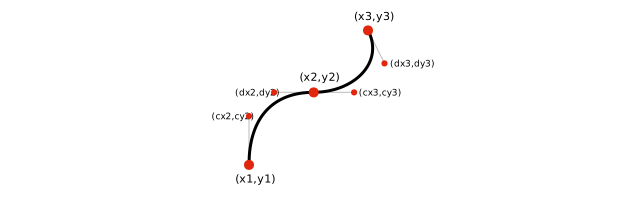
All x and y coordinates are given in pw units and ph units, respectively.
color(string) The color of the stroke used to draw the shape.
lineWidth(pw units) The width of the stroke used to draw the shape.
closePath(boolean, optional) Whether or not the last point in the shape's path will be connected back to the first point. This parameter is optional; if omitted, it defaults to false.
Return Value
This function does not return a value.
Description
Draws a Bezier curve by using the path and control points in the array coordinates, using a stroke of width lineWidth and color color.
If closePath is true, the last point will be connected back to the first point with a straight line, creating a closed shape. To close a path with a curve, include the beginning point at the end of the array with the necessary control points, and set closePath to true to join the ends together.
Note that this function draws the outline of a shape; to draw a solid shape, use fillBezierShape(). To draw a shape that is both filled and outlined, call fillBezierShape() and then drawBezierShape() with the same position and radius.
Inator.fillBezierShape()
Syntax
Parameters
coordinates(array) An array containing a list of the shape's path in the form:
[[x1, y1],

                                              [cx2, cy2, dx2, dy2, x2, y2],

                                              [cx3, cy3, dx3, dy3, x3, y3],

                                              ...,

                                              [cxN, cyN, dxN, dyN, xN, yN]

                                            ]
In this array, (x1,y1) is the starting point for the path, and (xN,yN) represents the end point for each curve, (cxN,cyN) represents the first control point, and (dxN,dyN) represents the second control point.
See Inator.drawBezierShape() for an illustrative diagram. All x and y coordinates are given in pw units and ph units, respectively.
color(string) The color used to fill the shape.
Return Value
This function does not return a value.
Description
Draws a Bezier curve by using the path and control points in the array coordinates filled with the color color.
If closePath is true, the last point will be connected back to the first point with a straight line, creating a closed shape. To close a path with a curve, include the beginning point at the end of the array with the necessary control points, and set closePath to true to join the ends together.
Note that this function draws a solid shape; to draw the outline of a shape, use drawBezierShape(). To draw a shape that is both filled and outlined, call fillBezierShape() and then drawBezierShape() with the same coordinates.
Inator.drawArc()
Syntax
Parameters
x(pw units) The horizontal coordinate for the center of the circle from which the arc is drawn.
y(ph units) The vertical coordinate for the center of the circle from which the arc is drawn.
radius(pw units) The radius of the circle from which the arc is drawn.
start(number) The location on the circle to start drawing, given in degrees where 0 is the top of the circle and values increase clockwise.
end(number) The location on the circle to end drawing, given in degrees where 0 is the top of the circle and values increase clockwise.
color(string) The color of the stroke used to draw the shape.
lineWidth(pw units) The width of the stroke used to draw the shape.
closePath(boolean) Whether or not the chord of the arc will be drawn, creating a closed shape.
Return Value
This function does not return a value.
Description
Draws a portion of a circle whose center is at (x,y) and whose radius is radius, starting at start and ending at end, using a stroke of width lineWidth and color color.
The parameters start and end are given in degrees, where 0 is at the 12 o'clock position, 90 is at the 3 o'clock position, and so on. Drawing is always done clockwise from start to end.
If closePath is true, the two ends of the arc will be connected with a chord line, creating a closed shape.
Note that this function draws the outline of the arc or, if closePath is true, the outline of a circular segment. To draw a solid circular segment, use fillArc(). To draw a circular segment that is both filled and outlined, call fillArc() and then drawArc() with the same parameters, ensuring that closePath is set to true.
Inator.fillArc()
Syntax
Parameters
x(pw units) The horizontal coordinate for the center of the circle from which the arc is drawn.
y(ph units) The vertical coordinate for the center of the circle from which the arc is drawn.
radius(pw units) The radius of the circle from which the arc is drawn.
start(number) The location on the circle to start drawing, given in degrees where 0 is the top of the circle and values increase clockwise.
end(number) The location on the circle to end drawing, given in degrees where 0 is the top of the circle and values increase clockwise.
color(string) The color used to fill the shape.
Return Value
This function does not return a value.
Description
Draws a portion of a circle whose center is at (x,y) and whose radius is radius, starting at start and ending at end, filled with the color color.
The parameters start and end are given in degrees, where 0 is at the 12 o'clock position, 90 is at the 3 o'clock position, and so on. Drawing is always done clockwise from start to end.
Note that this function draws a solid circular segment; to draw the outline of a circular segment or a simple arc, use drawArc(). To draw a circular segment that is both filled and outlined, call fillArc() and then drawArc() with the same parameters, ensuring that closePath is set to true.
Inator.drawText()
Syntax
Parameters
x(pw units) The horizontal coordinate for the origin point of the text string. By default, the origin point is at the upper left corner of the text string; if align is set to "center" or "right", then the origin point will be in the upper center point or upper right corner, respectively.
y(ph units) The vertical coordinate for the origin point of the text string. By default, the origin point is at the upper left corner of the text string; if textBaseline is set to "middle" or "bottom", then the origin point will be in the middle left point or lower left corner, respectively.
textString(string) The text to be displayed on the canvas.
size(ph units) The vertical height of the text.
align(string, optional) How the text should be aligned with the origin point. Possible values are "left", "center" and "right". This parameter is optional; if missing, it defaults to "left".
style(string, optional) The style of the text. Any CSS font-style, font-weight or font-decoration specifiers may be used, such as "bold" or "italic". This parameter is optional; if omitted, it defaults to "normal".
color(string, optional) The color of the text. This parameter is optional; if omitted, it defaults to black.
rotateAmount(number, optional) The number of degrees clockwise the text should be rotated. If rotatePointX and rotatePointY are not specified, the text is rotated around the origin point. This parameter is optional; if omitted, text will not be rotated.
rotatePointX(pw units, optional) The horizontal coordinate of the point around which the text should be rotated as specified in rotateAmount. This parameter is optional; if omitted, it defaults to the value given in x.
rotatePointY(ph units, optional) The vertical coordinate of the point around which the text should be rotated as specified in rotateAmount. This parameter is optional; if omitted, it defaults to the value given in y.
fontName(string, optional) The name of the typeface to use for the text string. This parameter is optional; if omitted, it defaults to Music Theory 21c's standard font, "Fira Sans Condensed".
width(pw units, optional) The maximum width of the text string. This parameter is optional; if omitted, no maximum width will be enforced.
resizeText(boolean, optional) Whether or not text should be reduced in size to fit in the limit specified in width. This parameter is optional; if omitted, it defaults to false.
textBaseline(string, optional) A descriptor of how the origin coordinates x and y relate to the baseline of the text. Possible values include 'top', 'middle', 'bottom', 'alphabetic', 'ideographic' and 'hanging'. This parameter is optional; if omitted, it defaults to 'top'.
(boolean, optional) Whether or not to wrap the text to multiple lines if necessary to fit within the width specified in width. If this parameter is true, the resizeText parameter will be ignored. This parameter is optional; if omitted, it defaults to true.
lineSpacing(ph units, optional) The distance between multiple lines of text. This parameter is only used if wrapText is set to true. This parameter is optional; if omitted, it defaults to a value equal to 120% of size.
Return Value
This function does not return a value.
Description
Draws the string textString at (x,y) at size size.Optional parameters allow specification of alignment, style, color, typeface and rotation.
The relationship of the text string to the origin point (x,y) depends on the value passed in align: in all cases, y indicates the top of the em square, which is normally just above the ascender line; the x value is at the left end, the horizontal center point, or the right end of the string for align values of "left", "center" and "right", respectively.
As is standard for web typography, the text height given in size is actually the height of the em square, which is slightly larger than the distance between ascenders and descenders.
Text can be rotated by using the rotateAmount, rotatePointX and rotatePointY parameters. The rotateAmount parameter specifies the number of degrees the text should be rotated clockwise around the origin point or, if included, the point (rotatePointX,rotatePointY).
If the width parameter is included, text is displayed so that it does not exceed the width value. If resizeText is true, this is done by reducing the font size; if wrapText is true, this is done by wrapping the text to multiple lines; otherwise, the string is truncated and an ellipsis character is added to indicate the missing text.
Accidental symbols can be included in the text parameter using the entities ♮, ♭, ♯, &doubleflat;, &doublesharp;, &tripleflat; and &triplesharp;.
To determine the width of a text string before displaying it, use Inator.getTextWidth().
Inator.drawMusicSymbol()
Syntax
Parameters
x(pw units) The horizontal coordinate for the origin point of the music symbol. By default, the origin point is on the left side of the text string; if align is set to "center" or "right", then the origin point will be in the center or right side, respectively.
y(ph units) The vertical coordinate for the origin point of the text string. The location of this point relative to the symbol varies on the symbol; for accidentals, it corresponds to the location where the staff line would intersect with the accidental.
symbol(string) The type of symbol to draw. Possible values are doubleFlat, doubleSharp, flat, natural, sharp, tripleFlat or tripleSharp.
(ph units) The vertical height of the symbol.
align(string, optional) How the symbol should be aligned with the origin point. Possible values are "left", "center" and "right". This parameter is optional; if missing, it defaults to "left".
color(string, optional) The color of the symbol. This parameter is optional; if omitted, it defaults to black.
Return Value
This function does not return a value.
Description
Draws the symbol symbol at (x,y) at size size.Optional parameters allow specification of alignment, color.
Inator.drawMusicSymbol()
Syntax
Parameters
x(pw units) The horizontal coordinate for the origin point of the music symbol.
y(ph units) The vertical coordinate for the origin point of the music symbol.
symbol(string) A string describing the music symbol. Possible values are shown in the table below.
size(ph units) The vertical height of the music symbol.
color(string, optional) The color of the music symbol. This parameter is optional; if omitted, it defaults to black.
Return Value
This function does not return a value.
Description
Draws the music symbol symbol at (x,y) at size size. An optional parameters allows specification of color.
The origin point described by x and y can vary from character to character. For accidentals, the origin point corresponds to the horizontal location where a staff line would intersect with the symbol.
The symbol parameter can be any of the following:
| 'flat' | a flat accidental symbol |
| 'natural' | a natural accidental symbol |
| 'sharp' | a sharp accidental symbol |
| 'doubleSharp' | a double sharp accidental symbol |
| 'doubleFlat' | a double flat accidental symbol |
| 'tripleSharp' | a triple sharp accidental symbol |
| 'tripleFlat' | a triple flat accidental symbol |
Inator.drawBraille()
Syntax
Parameters
x(pw units) The horizontal coordinate for the upper left corner of the braille sequence.
y(ph units) The vertical coordinate for the upper left corner of the braille sequence.
textString(string) The braille ASCII text to be displayed.
height(ph units) The vertical height of the braille sequence.
color(string, optional) The color of the text. This parameter is optional; if omitted, it defaults to black.
backgroundColor(string, optional) The color of the text background. If this parameter is an empty string, no background will be drawn. This parameter is optional; if omitted, it defaults to an empty string.
smallDots(boolean, optional) Whether or not to use small dots to represent unused positions in each braille character. This parameter is optional; if omitted, it defaults to false.
Return Value
width(pw units) The width of the string when displayed in the inator.
Description
Draws the braille ASCII string textString at (x,y) at height height. Optional parameters allow specification of color, background color, and whether or not small dots should be used to fill out individual braille characters.
Note that textString is a braille ASCII string; this function does not translate text into Grade 1 or Grade 2 braille.
Inator.plotFunction()
Syntax
Parameters
plotData(array) An array which provides the functions to be plotted, along with the color and width of the plotlines, expressed in the following format:
[[function1, color1, lineWidth1],

                                              [function2, color2, lineWidth2],

                                              ...,

                                              [functionN, colorN, lineWidthN],

                                            ]
...where functionN is a function that returns a Y value for a passed X value, colorN is a string which specifies the color for the plotline, and lineWidth is a number in pw units that specifies the line width of the plotline. colorN and lineWidth are optional; if omitted, their values will be red and 0.2, respectively.
left(pw units) The horizontal coordinate of the upper left corner of the graph.
top(ph units) The vertical coordinate of the upper left corner of the graph.
width(pw units) The width of the graph.
height(ph units) The height of the graph.
startX(number, optional) The X value, in degrees, to be set as the left edge of the graph. This parameter is optional; if omitted, the graph will start at X = 0.
endX(number, optional) The X value, in degrees, to be set as the right edge of the graph. This parameter is optional; if omitted, the graph will end at X = 360.
yScale(number, optional) The value for Y to be set as the as the top edge of the graph; yScale * (-1) will be set as the bottom edge of the graph. This parameter is optional; if omitted, the graph will span from Y = 1 to Y = -1.
axisLineWidth(pw unit, optional) The line width of the X and Y axis in the graph. This parameter is optional; if omitted, it defaults to 0.2.
axisInFront(boolean, optional) Whether or not the axes should be drawn in front of the plotlines. This parameter is optional; if omitted, it defaults to true.
Return Value
This function does not return a value.
Description
Draws a graph at (x,y) that is width wide and height tall which shows the functions passed in plotData. Optional parameters allow specification of plotline color and width, span of X values, scale of Y values, and appearance of the axes.
Each item in the plotData array is itself an array, which can take any of the following forms:
[function]
[function, color]
[function, color, lineWidth]
In each case, function is a JavaScript function that is passed one parameter, x, and which should return a number that will be interpreted as the corresponding y value. The optional parameters color and lineWidth specify the appearance of the plotline.
The limits of the graph are specified with the parameters startX, endX and yScale. The X axis is always drawn centered between the top and bottom of the graph, the Y axis will be drawn at X = 0, which depends on the startX and endX parameters.
Initialization
Code necessary for initializing the inator should be placed in the inator's constructor() function after the call to super(), and should end with a call to this.draw() to draw the graphic interface.
Initialization of prebuilt controls — sliders, keyboards, and power buttons — must be done in the constructor. Other common initialization tasks include setting variables, creating audio systems, and setting up inator power handling.
Power
Inators can range from passive utilities with minimal interaction to powerful web applications with heavy animation and which use technologies like audio synthesis and MIDI interaction. Because a single page can contain many separate inators, it is important that inators are designed to use processor resources mindfully to ensure a smooth user experience.
The Inator class includes management of Inator Power to facilitate mindful design. Inators in which processing is done for a limited time in response to user interaction, like a short sound which is played when a button is pressed, do not need to use Inator Power. However, inators which:
- Show persistent animation, like a spinning vinyl record
- Play any audio, either recorded or synthesized
- Use the user's microphone or camera
...should make use of Inator Power to allow the user control over when the inator is enabled and disabled.
Using Inator Power
Inator functions can access Inator Power in two ways:
- To check to see current power status, functions can use the
Inator.power()function; a value oftruereturned by this function means Inator Power is on. For example, when handling a user mouse click, code can checkInator.power()to determine whether or not to take any action. - To respond to a change in power status, code can be added to the inator functions
powerOn()andpowerOff(). For example, thepowerOn()function might contain a call toInator.enableKeyboard()to enable a keyboard control.
Controlling Inator Power
Power can be controlled in three different ways:
- By calling
Inator.addPowerButton()during initialization. This method adds a button to the interface which controlsInator.powerwith no further code required, and gives the user complete control over turning the inator on and off. This is the recommended method, especially for inators which use audio, video or interactions which require user permission. - By setting the
Inator.autoPowerOnproperty totrueduring initialization. This causes power to be set to true automatically when the inator scrolls into view. - By calling the
Inator.setPower()function to control Inator Power programmatically.
Regardless of which of the above methods are used, Inator Power is always turned off when the inator is scrolled out of view.
Inator.power()
Syntax
Parameters
This function does not take any parameters.
Return Value
powerIsOn(boolean) Whether or not Inator Power is currently on.
Description
Returns true if Inator Power is currently on. Inator Power can be turned on or off by the user using a Power Button, programmatically using Inator.setPower(), or automatically using Inator.autoPowerOn. Inator Power has no effect other than showing status in Power Buttons, but can be used to give the user control over processor-intensive activities such as audio and animation.
Inator.setPower()
Syntax
Parameters
engagePower(boolean) Whether or not Inator Power should be turned on.
Return Value
This function does not return a value.
Description
Sets the current status of Inator Power. Inator Power can also be turned on or off by the user using a Power Button or automatically using Inator.autoPowerOn. Inator Power has no effect other than showing status in Power Buttons, but can be used to give the user control over processor-intensive activities such as audio and animation.
Inator.autoPowerOn
Syntax
Value
(boolean) Whether or not Inator Power will be managed automatically.
Description
Inator Power can be managed directly by the user using a Power Button, programmatically using Inator.setPower(), or automatically using Inator.autoPowerOn. When Inator Power is managed automatically, Inator Power is off when the page loads, turned on when the Inator is scrolled into view, and turned off when the Inator is scrolled out of view. If the Inator is visible in the viewport when the page loads, power is automatically turned on.
Event Handling
Code for responding to mouse and keyboard actions should be included as parameters to the super() statement in the inator's constructor, in the following form:
constructor(whichCanvas) {
    super(whichCanvas, {
        pointerdown: (e) => {
        // event handling code here
        });
In addition to pointerdown, other events that are commonly handled here are pointerup, pointermove, keydown and keyup. Note that inators should avoid handling mouse or touch events, since pointer events provide a consistent interface regardless of the user's hardware configuration.
As an example, to create a button in an inator, the draw() function should include code for displaying the button, and the pointerdown event handler should test to see if the click occurred within the bounds of the button and, if so, take appropriate action.
Prebuilt controls — keyboards, sliders and power buttons — handle user interaction automatically, so they do not require further event handling code.
The provided inator template, _template.js includes a pre-arranged structure for event handling, as well as code to automatically prevent auto-repeating keystrokes.
The functions below can be used to determine if a click, touch or pen event happened within the boundaries of a particular shape.
Inator.isEventPositionInRect()
Syntax
Parameters
event(object) A JavaScript mouse or touch event, as passed to a callback function by an event handler.
left(pw units) The horizontal coordinate of the upper left corner of the rectangle to test against.
top(ph units) The vertical coordinate of the upper left corner of the rectangle to test against.
width(pw units) The width of the rectangle to test against.
height(ph units) The height of the rectangle to test against.
Return Value
isInArea(boolean) Whether or not the passed mouse, touch or pen event is within the rectangle's area.
Description
Returns true if the mouse, touch or pen event passed as event occurred within the rectangle described by left, top, width and height.
Inator.isEventPositionInCircle()
Syntax
Parameters
event(object) A JavaScript mouse or touch event, as passed to a callback function by an event handler.
x(pw units) The horizontal coordinate of the center of the circle to test against.
y(ph units) The vertical coordinate of the center of the circle to test against.
radius(pw units) The radius of the circle to test against, expressed as a percentage of inator width.
Return Value
isInArea(boolean) Whether or not the passed mouse, touch or pen event is within the circle's area.
Description
Returns true if the mouse, touch or pen event passed as event occurred within the circle centered at (x, y) with radius radius. Note that radius is expressed in pw units, which is consistent with drawCircle() and fillCircle().
Inator.isEventPositionInTriangle()
Syntax
Parameters
event(object) A JavaScript mouse or touch event, as passed to a callback function by an event handler.
x1(pw units) The horizontal coordinate of the first vertex of the triangle to test against.
y1(ph units) The vertical coordinate of the first vertex of the triangle to test against.
x2(pw units) The horizontal coordinate of the second vertex of the triangle to test against.
y2(ph units) The vertical coordinate of the second vertex of the triangle to test against.
x3(pw units) The horizontal coordinate of the third vertex of the triangle to test against.
y3(ph units) The vertical coordinate of the third vertex of the triangle to test against.
Return Value
isInArea(boolean) Whether or not the passed mouse, touch or pen event is within the triangle described by the passed coordinates.
Description
Returns true if the mouse, touch or pen event passed as event occurred within the triangle with vertices (x1,y1), (x2,y2) and (x3,y3).
Inator.isEventPositionInQuadrilateral()
Syntax
Parameters
event(object) A JavaScript mouse or touch event, as passed to a callback function by an event handler.
x1(pw units) The horizontal coordinate of the first vertex of the quadrilateral to test against.
y1(ph units) The vertical coordinate of the first vertex of the quadrilateral to test against.
x2(pw units) The horizontal coordinate of the second vertex of the quadrilateral to test against.
y2(ph units) The vertical coordinate of the second vertex of the quadrilateral to test against.
x3(pw units) The horizontal coordinate of the third vertex of the quadrilateral to test against.
y3(ph units) The vertical coordinate of the third vertex of the quadrilateral to test against.
x4(pw units) The horizontal coordinate of the fourth vertex of the quadrilateral to test against.
y4(ph units) The vertical coordinate of the fourth vertex of the quadrilateral to test against.
Return Value
isInArea(boolean) Whether or not the passed mouse, touch or pen event is within the quadrilateral described by the passed coordinates.
Description
Returns true if the mouse, touch or pen event passed as event occurred within the quadrilateral with vertices (x1,y1), (x2,y2), (x3,y3) and (x4,y4). Note that this function only works with quadrilaterals where both diagonals are completely enclosed within the shape's area; for concave, boomerang like shapes, consider testing multiple component triangles using Inator.isEventPositionInTriangle().
Accessibility
Music Theory 21c was intended from the beginning to meet high standards of accessibility, so it is imperative that inators be designed to do the same.
The graphic nature of inators' design can present challenges to people who are unable to use a mouse or touchscreen, and to people who rely on screenreading software to accommodate visual impairments. Inators can be made accessible for these users by ensuring that all controls have keyboard shortcuts, and by providing feedback using Inator.setAriaStatus.
Keyboard Shortcuts
All buttons and other controls in the graphic interface that are normally controlled using the mouse can and should have keyboard shortcuts. The inator template, _template.js, provides the following sample code in the keydown event handler for this purpose:
keydown: (e) => {
    switch (e.code) {
        case "Enter":

            break;
        case "Space":

            break;
    }
Code placed in the appropriate case block will run when the user presses the corresponding key. Note that the numeric codes shown are keycodes, not ASCII or Unicode codepoints: the website keycode.info can be a helpful resource for finding these codes.
For sliders and other continuous controls, keyboard shortcuts can and should be provided for points along the spectrum; for example, number keys can set a volume slider to 10%, 20%, 30% and so on. For musical keyboard controls, it is suggested to allow the bottom two rows of the QWERTY keyboard to play notes from C4 to C5, with the keys Z, X, C, V, B, N, M, and comma serving as white keys and the keys S, D, G, H and J serving as black keys.
In addition to adding keyboard shortcuts, it is necessary to provide instructions for their use in an accessible way. This is done by calling the Inator.setAriaLabel() function in the inator's constructor and providing concise yet comprehensive instructions with appropriate keyboard shortcuts.
Accessible Feedback
Screenreader-compatible feedback for user actions should be provided in event handlers by using the Inator.setAriaStatus() function. While feedback can be provided for mouse and touch events, it must be provided for keyboard events. This feedback should be a short phrase that describes the result of the user action: for example, "Volume set to 50 percent" or "D flat added to chord."
Audio
The ability to use sound to demonstrate concepts within the text is one of the uniquely valuable benefits of Music Theory 21c over other music theory textbooks. Writer/developers should strive to allow readers to hear any sound or music alongside its presentation in visual form.
Inators contain built-in functions for basic audio functions, including playing recordings and generating synthesized or sampled tones. To ensure user control over sound playback, functions which generate immediate audio playback like playNote() and startPlayback() can only be called as a result of direct user interaction, such as a mouse click or key press.
Inator.addSynth()
Syntax
Parameters
instrument(string, optional) The name of an optional instrument sound to use. Available options are 'bass-electric', 'bassoon', 'cello', 'clarinet', 'contrabass', 'flute', 'french-horn', 'guitar-acoustic', 'guitar-electric', 'guitar-nylon', 'harmonium', 'harp', 'organ', 'piano', 'saxophone', 'trombone', 'trumpet', 'tuba', 'violin', 'xylophone' or an empty string (''). This parameter is optional; if omitted, this parameter defaults to an empty string (''), which will result in a basic sine-wave synthesized tone.
Return Value
synthNum(number) An index which refers to the newly synth object, which can be passed to playNote() and stopNote() to play the synthesizer.
Description
This function creates a single synthesizer object which can be controlled by calling playNote() and stopNote(). When the instrument parameter is set to the name of an instrument like 'piano' or 'flute', this function creates a Tone.Sampler() sound source using a built-in set of audio samples. If this function is called without a parameter, it creates a Tone.Synth() sound source.
Inator.playNote()
Syntax
Parameters
synthNum(number) The index of the synthesizer to be used, as returned by addSynth().
(number) The frequency in Hertz of the pitch to be played.
duration(number, optional) The duration, in seconds, that the note will be held before being released. This parameter is optional; if omitted, it defaults to 0, meaning that the note will be held until specifically stopped with stopNote().
Return Value
This function does not return a value.
Description
This function causes a synthesizer to begin playing the pitch at the frequency given in the note parameter and hold it for the number of seconds passed in duration. If the duration parameter is 0 or omitted, the note will be held until the sampled audio is finished, or — if addSynth() was passed with no parameter — until the note is explicitly stopped using stopNote().
The midiToFreq() is useful for converting MIDI pitch values to frequencies for use in this function.
This function must be called as a result of a direct user interaction, such as a mouse click or key press. If called from a function that did not proceed from a direct user event, a warning will be reported to the console and audio will not play.
Inator.scheduleNote()
Syntax
Parameters
synthNum(number) The index of the synthesizer to be used, as returned by addSynth().
(number) The frequency in Hertz of the pitch to be played.
time(number) The number of seconds to delay playback of the note.
duration(number, optional) The duration, in seconds, that the note will be held before being released. This parameter is optional; if omitted, it defaults to 0, meaning that the note will be held until specifically stopped with stopNote().
Return Value
This function does not return a value.
Description
This function causes a synthesizer to begin playing the pitch at the frequency given in the note parameter after a delay of time seconds and hold it for the number of seconds passed in duration. If the duration parameter is 0 or omitted, the note will be held until the sampled audio is finished, or — if addSynth() was passed with no parameter — until the note is explicitly stopped using stopNote().
The midiToFreq() is useful for converting MIDI pitch values to frequencies for use in this function.
This function must be called as a result of a direct user interaction, such as a mouse click or key press. If called from a function that did not proceed from a direct user event, a warning will be reported to the console and audio will not play.
Inator.stopNote()
Syntax
Parameters
synthNum(number) The index of the synthesizer to be used, as returned by addSynth().
(number) The frequency in Hertz of the pitch to be stopped.
Return Value
This function does not return a value.
Description
This function causes a synthesizer to stop playing the pitch at the frequency given in the note parameter. This is normally used in conjunction with playNote(). Using this function with a frequency that was not previously started with playNote() has no effect.
The midiToFreq() is useful for converting MIDI pitch values to frequencies for use in this function.
Inator.getSynthVolume()
Syntax
Parameters
synthNum(number) The index of the synthesizer in question, as returned by addSynth().
Return Value
volume(number) The current volume level of the synthesizer, where 0 is silence and 100 is full volume.
Description
This function returns the volume of the synthesizer referred by synthNum, expressed as a number between 0, representing silence, and 100, representing full volume.
This value represents only the volume of the indicated synthesizer in relation to other sound sources; it does not reflect the user's system volume setting or any other elements in the inator or on the page.
Inator.setSynthVolume()
Syntax
Parameters
synthNum(number) The index of the synthesizer in question, as returned by addSynth().
(number) The volume level to set, where 0 is silence and 100 is full volume.
Return Value
This function does not return a value.
Description
This function sets the volume of the synthesizer referred by synthNum to the volume level specified by volume, which is expressed as a number between 0, representing silence, and 100, representing full volume.
This setting controls only the volume of the indicated synthesizer in relation to other sound sources; it does not affect the user's system volume setting or any other elements in the inator or on the page.
Inator.synthObject()
Syntax
Parameters
synthNum(number) The index of the synthesizer in question, as returned by addSynth().
Return Value
synthObj(number) The actual Tone.PolySynth object for the synth referenced by synthNum.
Description
This function returns the actual Tone.PolySynth object used by the synth referenced by synthNum, allowing advanced manipulation using functions built in to Tone.js.
Inator.addPlayer()
Syntax
Parameters
pathname(string) The URL for an audio file in MP3 or FLAC format.
Return Value
playerNum(number) An index which refers to the newly player object, which can be passed to startPlayback(), loopPlayback() and stopPlayback() to operate the audio player.
Description
This function creates a single audio player object which can be controlled by calling startPlayback(), loopPlayback() and stopPlayback(). Supported file formats vary from browser to browser; to maximize compatibility, developers should use MP3 files for most sounds and FLAC files for more complex audio configurations.
Inator.startPlayback()
Syntax
Parameters
playerNum(number) The index of the audio player to control, as returned by addPlayer().
(number, optional) An offset from the beginning of the audio track to begin playback, expressed in seconds. This parameter is optional; if omitted, it defaults to 0, causing playback to start at the beginning of the audio track.
(number, optional) The number of seconds that playback will continue before stopping. This parameter is optional; if omitted, it defaults to the length of the audio track minus any offset indicated by the start parameter, causing playback to continue until the end of the audio track.
Return Value
This function does not return a value.
Description
This function starts playback for an audio player, which will play the audio file passed by addPlayer(). If the start and duration parameters are omitted, the complete audio track will be played and then playback will stop. To play the audio as a loop, use loopPlayback().
This function must be called as a result of a direct user interaction, such as a mouse click or key press. If called from a function that did not proceed from a direct user event, a warning will be reported to the console and audio will not play.
Inator.loopPlayback()
Syntax
Parameters
playerNum(number) The index of the audio player to control, as returned by addPlayer().
(number, optional) An offset from the beginning of the audio track specifying the beginning of the looped section of audio, expressed in seconds. This parameter is optional; if omitted, it defaults to 0, setting the beginning of the loop to the beginning of the audio track.
(number, optional) An offset from the beginning of the audio track indicating the end of the looped section of audio, expressed in seconds. This parameter is optional; if omitted, it defaults to the end of the audio track.
Return Value
This function does not return a value.
Description
This function plays a segment of an audio player's audio file indicated by the startTime and endTime parameters, and will cause the playback to loop until stopped by stopPlayback(). If the startTime and endTime parameters are omitted, the complete audio track will be played. To play the audio without looping, use startPlayback().
This function must be called as a result of a direct user interaction, such as a mouse click or key press. If called from a function that did not proceed from a direct user event, a warning will be reported to the console and audio will not play.
Inator.stopPlayback()
Syntax
Parameters
playerNum(number) The index of the audio player to control, as returned by addPlayer().
Return Value
This function does not return a value.
Description
This function stops any current playback for the audio player indicated by playerNum.
Inator.getPlayerVolume()
Syntax
Parameters
playerNum(number) The index of the audio player in question, as returned by addPlayer().
Return Value
volume(number) The current volume level of the audio player, where 0 is silence and 100 is full volume.
Description
This function returns the volume of the audio player referred by playerNum, expressed as a number between 0, representing silence, and 100, representing full volume.
This value represents only the volume of the indicated audio player in relation to other sound sources; it does not reflect the user's system volume setting or any other elements in the inator or on the page.
Inator.setPlayerVolume()
Syntax
Parameters
playerNum(number) The index of the audio player in question, as returned by addPlayer().
(number) The volume level to set, where 0 is silence and 100 is full volume.
Return Value
This function does not return a value.
Description
This function sets the volume of the audio player referred by playerNum to the volume level specified by volume, which is expressed as a number between 0, representing silence, and 100, representing full volume.
This setting controls only the volume of the indicated audio player in relation to other sound sources; it does not affect the user's system volume setting or any other elements in the inator or on the page.
Inator.playerObject()
Syntax
Parameters
playerNum(number) The index of the player in question, as returned by addPlayer().
Return Value
playerObj(number) The actual Tone.Player object for the player referenced by playerNum.
Description
This function returns the actual Tone.Player object used by the synth referenced by playerNum, allowing advanced manipulation using functions built in to Tone.js.
Additionally, several functions are provided to help convert MIDI values returned by Inator.addKeyboardControl to the frequencies required by audio functions above.
Inator.midiToAccidental()
Syntax
Parameters
midiValue(number) An integer representing pitch in MIDI format, where C4 = 60.
Return Value
hasAccidental(boolean) Whether or not the passed pitch requires an accidental to portray in staff notation.
Description
Returns a boolean value indicating that the passed note requires an accidental to portray in staff notation — in other words, a value of true indicates the note is a black note on the piano keyboard.
Inator.midiToDiatonicPitchClass()
Syntax
Parameters
midiValue(number) An integer representing pitch in MIDI format, where C4 = 60.
useSharps(boolean) Whether or not to consider chromatic notes as sharps. This parameter is optional; if omitted, this value defaults to true, meaning that chromatic notes will be interpreted as sharps.
Return Value
diatonicPitchClass(number) The diatonic pitch class of the passed note, disregarding any accidentals, where C = 0 and B = 6.
Description
Returns the diatonic pitch class of the passed note, which is an integer where C = 0, D = 1, E = 2, and so on. Chromatic notes are interpreted based on the value of the useSharps parameter; for example, midiToDiatonicPitchClass(63, true) will return 1, representing D#, while midiToDiatonicPitchClass(63, false) will return 2, representing Eb.
Inator.noteToFreq()
Syntax
Parameters
note(noteObject) The note for which to return the frequency, passed as a noteObject.
a4(number) The frequency of A4 in Hertz. This parameter is optional; if omitted, it defaults to 440.
Return Value
frequency(number) A frequency value in Hertz which corresponds to the passed note value.
Description
Converts the passed note value to the pitch's frequency in Hertz in a 12-TET system based a frequency of A4 passed in the a4 parameter.
Inator.midiToFreq()
Syntax
Parameters
midiValue(number) An integer representing pitch in MIDI format, where C4 = 60.
a4(number) The frequency of A4 in Hertz. This parameter is optional; if omitted, it defaults to 440.
Return Value
frequency(number) A frequency value in Hertz which corresponds to the passed MIDI note value.
Description
Converts the passed MIDI note value to the pitch's frequency in Hertz in a 12-TET system based a frequency of A4 passed in the a4 parameter. The following code will add an on-screen keyboard which plays notes when clicked:
constructor(whichCanvas) {
// ...other code, including call to super();

this.synth = new Tone.Synth().toDestination();
myKeyboardIndex = this.addKeyboard(25, 25, 50, 50, 2, true,
                                   this.noteOn,
                                   this.noteOff
                                  );
}
noteOn(midiNote) {
let hz = this.midiToFreq(midiNote);
this.synth.triggerAttack(hz)
}
noteOff(midiNote) {
this.synth.triggerRelease()
}
Inator.midiToNoteName()
Syntax
Parameters
midiValue(number) An integer representing pitch in MIDI format, where C4 = 60.
Return Value
noteName(string) A string containing the letter name description for the passed note.
Description
Converts the passed MIDI note value to the note's name as a string, such as F or A sharp.
Inator.midiToNoteOctave()
Syntax
Parameters
midiValue(number) An integer representing pitch in MIDI format, where C4 = 60.
Return Value
octave(number) The octave number of the passed note.
Description
Returns the octave number of the passed note. This function can be used in conjunction with Inator.midiToNoteName() to determine the full note name of the passed value.
Inator.midiToStaffNote()
Syntax
Parameters
midiValue(number) An integer representing pitch in MIDI format, where C4 = 60.
clef(string) A string representing which clef to use to place the note on the staff. Possible values are 'treble', 'alto', 'tenor', 'bass', or 'unpitched'; 'unpitched' will return the same result as 'treble'. This parameter is optional; if omitted, it defaults to 'treble'.
(boolean) A boolean value indicating whether or not to interpret chromatic notes as sharped notes. This parameter is optional; if omitted, it defaults to true, indicating that chromatic notes should be interpreted as sharped.
Return Value
staffNote(object) An object representing the location of the note given by midiValue on a staff with the clef clef. This object has two properties: staffNote.staffPosition, a number indicating the position on the staff where 0 represents the center line, positive integers represent lines and spaces above the center line and negative numbers represent lines and spaces below the center line; and staffNote.accidental, a string containing the name of the accidental to be used which can be passed to addNote() or addAccidental().
Description
Returns an object containing the information necessary to add the note passed by midiValue to a staff with clef clef. The object returned contains the properties staffPosition and accidental, which can be passed to addNote(), or passed as an object to addStaffNote().
MIDI Input
The Inator.initializeMIDI() method can be called to respond to "note on" and "note off" events on MIDI instruments connected to the user's computer. This method can be called safely regardless of whether the web browser supports the Web MIDI API; on browsers like Safari which do not support Web MIDI, calling Inator.initializeMIDI() will return false and callback functions will not be called.
Inator.initializeMIDI()
Syntax
Parameters
noteOnCallback(function) A function which will be called when a MIDI "note on" event is detected. The function is passed two parameters: midiNote, an integer between 0 and 127 representing the MIDI value of the note pressed, and velocity, an integer between 0 and 127 representing the intensity with which the key was pressed.
noteOffCallback(function) A function which will be called when a MIDI "note off" event is detected. The function is passed one parameter: midiNote, an integer between 0 and 127 representing the MIDI value of the note released.
successCallback(function) A function which, if included, will be called once an attached MIDI system is detected. The function is passed one parameter: connectionSuccess, a boolean value indicating whether or not the MIDI system is available for use. This parameter is optional; if omitted, no callback will be made.
Return Value
success(boolean) Whether or not the browser supports MIDI functionality.
Description
This function connects to the computer's connected MIDI system, if present, and creates event handlers to respond to MIDI note events. This interface reports note events from any connected device, and does not specify which device is being used. Only "note on" and "note off" events are reported; other events, like program changes, pitchwheel changes or aftertouch messages, are ignored.
On browsers which do not support MIDI functionality, this function returns false but does not cause errors; MIDI events will simply be ignored.
Tone.js
Audio functions in Music Theory 21c make use of Yotam Mann's excellent Tone.js audio framework. Tone.js exists as a JavaScript wrapper to the HTML5 Web Audio API, providing many convenient shortcuts and helpful utilities.
To include more complex audio functionality than what is provided by the built-in Inator functions above, developers are encouraged to make use Tone.js functions which are documented extensively on the Tone.js site. Some common use cases are described below.
Building the Audio Path
Tone.js uses the same component structure as the underlying HTML5 Audio framework. To play audio, an Inator must create and connect sources, components and destinations.
- Common sources include synths, which generate soundwaves, and players, which play linked digital audio files.
- Components accept audio signals from sources and affect them in some way; for example, a volume component allows control of the signal's volume level.
- Destination represent audio outputs; Inators should use
.toDestination()to connect audio to the user's default output setting.
Audio pathways should be initialized the inator's constructor function. For example, the following statement creates a simple monophonic synthesizer connected directly to the user's audio output and assigns it to the this.synth variable:
this.synth = new Tone.Synth().toDestination();
To add a volume control, we can instead start by calling Tone.Volume() and then connecting our synth to that volume control:
this.volumeFader = new Tone.Volume().toDestination();
this.synth = Tone.Synth().connect(this.volumeFader);
Initialization
Tone.js audio sources will not create sound until the audio engine is started through a call to Tone.start(), which must be called as a result of a direct user interaction. Once the audio engine has been initialized this way, further calls to Tone.start() are ignored.
One way of managing this requirement is to include a call to Tone.start() before every individual call to play audio, such as the response to a keyboard note being played. Another option is to include a power button using Inator.addPowerButton(), and place Tone.start() in the inator's powerOn() function.
Playing Sound
For synthesizer sources, notes can be played using the triggerAttack(), triggerRelease() and triggerAttackRelease() functions of the previously created synth object. These functions will accept both frequency values and pitch/octave notations.
// start playing A4
this.synth.triggerAttack('A4');

// release currently playing note
this.synth.triggerRelease();

// play A3, hold for 1/2 second, and release
this.synth.triggerAttackRelease(220, 0.5)
For player sources, playback of the linked audio file can be controlled using the start() and stop() statements.
// start playing at 0.5 seconds after the beginning of the file
this.player.start(0.5);

// stop playback
this.player.stop();
Advanced Audio Features
Tone.js provides many features for audio, including creating complex, polyphonic synthesizers and samplers, adding filters and other effects, and constructing complex multi-channel audio systems; developers are encouraged to consult the extensive documentation available at the Tone.js homepage.
Other Techniques
The Inator parent object provides several other properties and functions that developers may find useful.
Inator.myCanvas
Syntax
Value
(object) A reference to the HTML canvas element used by the inator.
Description
Inator.myCanvas returns the actual HTML canvas object used by the inator. Developers should not change the value of this property, as it will prevent built-in functions from working correctly.
Access to this object may be useful for advanced functions. To draw on the canvas, developers should use the built-in drawing functions provided by the Inator parent class, rather than accessing this object directly.
Inator.myDocument
Syntax
Value
(object) A reference to the document object containing the current inator.
Description
Inator.myDocument returns the document object representing the web page containing the inator. Developers should not change the value of this property, as it will prevent built-in functions from working correctly.
Access to this object may be useful for advanced functions. Inators should be completely self-contained, and should not interact with other elements on the page.
Inator.myWindow
Syntax
Value
(object) A reference to the window object containing the current inator.
Description
Inator.myWindow returns the window object representing the browser window containing the inator. Developers should not change the value of this property, as it will prevent built-in functions from working correctly.
Access to this object may be useful for advanced functions, such as detecting when the mouse has left or re-entered the inator's canvas. Inators should otherwise be completely self-contained, and should not interact with the browser window or other elements on the page.
Inator.bookURL
Syntax
Value
(string) The absolute URL for the root directory of Music Theory 21c, as specified at the beginning of main.js.
Description
Inator.bookURL returns the full URL of the Music Theory 21c website. In the original instance of the site, this value is https://tobyrush.com/book/.
Inator.resourcesDirectory
Syntax
Value
(string) The absolute URL for the _resources directory located in /js/inators. This value should not be changed; setting it to a different directory does not relocate resources and may prevent other functions from working correctly.
Description
Inator.resourcesDirectory returns the full URL of the _resources directory, where external resources used by inators — for example, digital audio files — should be stored.
Inator.darkMode
Syntax
Value
(boolean) A value indicating whether or not the user's browser is currently set to dark mode.
Description
Inator.darkMode returns true if dark mode is currently enabled and false if it is not. The variable is automatically updated when the user switches to and from dark mode.
The following code, if added to the inator's constructor function, will call modeSwitch() when the user switches to or from dark mode.
this.myWindow.matchMedia('(prefers-color-scheme: dark)')
    .addEventListener('change', this.modeSwitch.bind(this));
Inator.resourceURL()
Syntax
Parameters
filename(string) The name of a file located in the resources directory.
Return Value
urlStringThe absolute URL for the file specified by the filename parameter.
Description
Inator.resourceURL() is a convenience function which returns the absolute URL for the file filename located in the inator's resource directory located at /js/inators/_resources. This function is especially helpful for Tone.js functions which require the URL to a digital audio file as a parameter.
Inator.getParam()
Syntax
Parameters
parameterName(string) The name of a data- parameter present in the inator's <canvas> tag.
Return Value
parameters(array) An array containing the values the parameterName parameter(s).
Description
Inator.getParam() allows the inator to read custom parameters present in the inator's HTML <canvas> tag. This allows multiple instances of a single inator to be configured differently based on values included in each iteration's <canvas> tag.
Note that parameterName should not include the required data- prefix. Thus, an inator included in a page with the following HTML:
<canvas role="application" class="clefviewer inator" data-clef="treble"></canvas>
can access the data-clef parameter with the following code:
this.whichClef = this.getParam('clef')[0];
If the value of the parameter in the <canvas> tag is a simple value, parameters will be an array containing only that item. If the <canvas> tag's parameter is itself an array, parameters will contain the array as shown below.
<canvas role="application" class="settheory inator" data-set="[0,3,7]"></canvas>

setLength = this.getParam('set').length; // setLength = 3
If the parameter specified by parameterName is not present in the <canvas> tag, parameters will be an empty array.
Inator.createNote()
Syntax
Parameters
diatonicPitch(number) The diatonic pitch class of the note to create, where 0 is C, 1 is D, and so on up to 6 which is B.
(number) The accidental of the note to create, where 0 is natural, 1 is sharp, -1 is flat, 2 is double sharp, and so on.
(number) The octave of the note to create, where 4 is the octave from middle C up to the B in the middle of the treble clef staff.
Return Value
noteObject(object) An object representing the note with the passed values, suitable for passing to functions like getInterval() and getNoteAtInterval().
Description
Inator.createNote() is a function designed to simplify the creation of Note objects, which are used in functions like getInterval() and getNoteAtInterval().
Inator.createInterval()
Syntax
Parameters
distance(number) The diatonic distance of the interval to create, where 1 is a unison, 2 is a second, and so on. Compound intervals can be created by using values higher than 8.
(number) The inflection of the interval to create, where 0 is perfect, 1 is major, -1 is minor, 2 is augmented, and -2 is diminished.
(boolean) The direction of the interval, where true is ascending and false is descending. This parameter is optional; if omitted, it defaults to true.
Return Value
intervalObject(object) An object representing the interval with the passed values, suitable for passing to functions like getNoteAtInterval().
Description
Inator.createInterval() is a function designed to simplify the creation of Interval objects, which are used in functions like getNoteAtInterval(). If nonsensical values are passed, such as a distance of 0, or parameters denoting an impossible interval like a major fourth or perfect third, the function returned undefined. If a negative value is passed for distance, an interval will be created with the opposite ascending value.
Inator.getNoteAtInterval()
Syntax
Parameters
baseNote(noteObject) The starting note from which the interval will be measured, expressed as a noteObject.
interval(intervalObject) The interval to measure from baseNote, expressed as an intervalObject.
Return Value
noteObject(noteObject) An object representing the resulting note, expressed as a noteObject.
Description
Inator.getNoteAtInterval() returns the note which is interval away from baseNote. Note that the direction of the interval can be indicated using interval.ascending.
Inator.getInterval()
Syntax
Parameters
firstNote(noteObject) The starting note from which the interval will be measured, expressed as a noteObject.
secondNote(noteObject) The ending note to which the interval will be measured, expressed as a noteObject.
Return Value
intervalObject(intervalObject) The interval measurement between the two notes.
Description
Inator.getInterval() measures the interval distance between firstNote and secondNote. Note that the direction of the interval is indicated using interval.ascending.
Inator.getNoteName()
Syntax
Parameters
note(noteObject) The note to be described, expressed as a noteObject.
includeOctave(boolean) Whether or not to include octave information in the name.
returnLongName(boolean) Whether or not to spell out accidentals.
Return Value
noteName(string) A human-readable representation of the note.
Description
Inator.getNoteName() returns the name of note as a human-readable string such as C# or A4. Passing true for includeOctave will return a value that includes octave information. Passing true for returnLongName will return a value that has accidentals spelled out instead of using symbols, suitable for passing to setAriaStatus().
Inator.setAriaStatus()
Syntax
Parameters
statusString(string) A descriptive message to be presented to the user.
brailleText(string) A string to be included as an ARIA braille label. This parameter is optional; if omitted, no text is displayed.
Return Value
This function does not return a value.
Description
Inator.setAriaStatus() presents the user a WAI-ARIA-compliant status message. These messages are present in HTML but not normally shown in the standard graphic user interface. They are, however, used by utilities such as screenreaders, which depends upon them to provide a secondary user interface for users do not use the graphic interface.
If the optional brailleText parameter is included, the passed string, which should be written in ASCII braille, will be included as an aria-braillelabel parameter, which is generally presented to the user on an attached refreshable braille display.
Developers should use Inator.setAriaStatus() to provide feedback to user interaction, especially key presses. Status messages should be brief and descriptive and should spell out common musical symbols such as "sharp" and "flat."
Inator.setAriaLabel()
Syntax
Parameters
labelString(string) A description of the inator.
Return Value
This function does not return a value.
Description
Inator.setAriaLabel() populates the aria-label parameter of the inator's <canvas> tag, providing a description of the inator for users who rely on utilities such as screenreaders to access the inator. This function must be called once in the inator's constructor function to provide a description of the inator's functionality, along with instructions for accessing the inator using keyboard shortcuts. This function should not be used to provide status updates or context-sensitive directions; Inator.setAriaStatus(), for which accessibility software announces changes to the user, should be used instead.
Inator.x()
Syntax
Parameters
pwValue(pw units) A horizontal coordinate.
Return Value
pixelValue(number) The corresponding X value in actual pixels.
Description
Inator.x() returns the actual X coordinate in pixels, relative to the upper left-hand corner of the inator, that corresponds to the pw unit — the percentage of the inator's width — passed in pwValue.
This function is used by the Inator parent object internally and can be accessed for advanced functions. Because the inator's built-in drawing methods are designed to accept pw units and ph units as coordinates, there is generally no need to use absolute pixel values, which will change depending upon the user's window size, orientation, and screen resolution.
Inator.y()
Syntax
Parameters
phValue(ph units) A vertical coordinate.
Return Value
pixelValue(number) The corresponding Y value in actual pixels.
Description
Inator.y() returns the actual Y coordinate in pixels, relative to the upper left-hand corner of the inator, that corresponds to the ph unit — the percentage of the inator's height — passed in phValue.
This function is used by the Inator parent object internally and can be accessed for advanced functions. Because the inator's built-in drawing methods are designed to accept pw units and ph units as coordinates, there is generally no need to use absolute pixel values, which will change depending upon the user's window size, orientation, and screen resolution.
Inator.unx()
Syntax
Parameters
pixelValue(number) A horizontal coordinate in actual pixels.
Return Value
pwValue(pw units) The corresponding X value as a percentage of inator width.
Description
Inator.unx() returns the pw unit — the percentage of the inator's width —, relative to the upper left-hand corner of the inator, that corresponds to the actual X coordinate in pixels passed in pixelValue.
This function is used by the Inator parent object internally and can be accessed for advanced functions. Because the inator's built-in drawing methods are designed to accept pw units and ph units as coordinates, there is generally no need to use absolute pixel values, which will change depending upon the user's window size, orientation, and screen resolution.
Inator.uny()
Syntax
Parameters
pixelValue(number) A vertical coordinate in actual pixels.
Return Value
phValue(ph units) The corresponding Y value as a percentage of inator height.
Description
Inator.uny() returns the ph unit — the percentage of the inator's height —, relative to the upper left-hand corner of the inator, that corresponds to the actual Y coordinate in pixels passed in pixelValue.
This function is used by the Inator parent object internally and can be accessed for advanced functions. Because the inator's built-in drawing methods are designed to accept pw units and ph units as coordinates, there is generally no need to use absolute pixel values, which will change depending upon the user's window size, orientation, and screen resolution.
Inator.scaleXToY()
Syntax
Parameters
pwValue(pw units) A measurement expressed as a percentage of inator width.
Return Value
phValue(ph units) The passed measurement, expressed as a percentage of inator height.
Description
Inator.scaleXToY() converts a measurement expressed as a percentage of inator width into a value expressed as a percentage of inator height.
As a means of ensuring responsive design, inator drawing functions use a coordinate system based on pw units and ph units, which are percentages of width and height, respectively. In most cases, however, these units are different, so that a quadrilateral with corners at (0,0) and (5,5) will not be a square, but a rectangle with the same proportions as the inator's canvas.
Inator.scaleXToY() and Inator.scaleYToX() provide a simple way to convert between the horizontal units and vertical units, so the following code will draw an actual square in the upper left-hand corner of the inator:
this.fillRect(0, 0, 5, this.scaleXToY(5), this.blue);
Inator.scaleYToX()
Syntax
Parameters
phValue(ph units) A measurement expressed as a percentage of inator height.
Return Value
pwValue(pw units) The passed measurement, expressed as a percentage of inator width.
Description
Inator.scaleYToX() converts a measurement expressed as a percentage of inator height into a value expressed as a percentage of inator width.
As a means of ensuring responsive design, inator drawing functions use a coordinate system based on pw units and ph units, which are percentages of width and height, respectively. In most cases, however, these units are different, so that a quadrilateral with corners at (0,0) and (5,5) will not be a square, but a rectangle with the same proportions as the inator's canvas.
Inator.scaleXToY() and Inator.scaleYToX() provide a simple way to convert between the horizontal units and vertical units, so the following code will draw an actual square in the upper left-hand corner of the inator:
this.fillRect(0, 0, this.scaleYToX(5), 5, this.blue);
Inator.width()
Syntax
Parameters
This function does not take any parameters.
Return Value
actualValue(pixels) The actual width, in pixels, of the inator's canvas.
Description
Inator.width() returns the actual width of the inator's canvas in pixels. This function is normally not used; developers are encouraged to use the inator's standard system of relative measurements to promote responsive design.
Inator.height()
Syntax
Parameters
This function does not take any parameters.
Return Value
actualValue(pixels) The actual height, in pixels, of the inator's canvas.
Description
Inator.height() returns the actual height of the inator's canvas in pixels. This function is normally not used; developers are encouraged to use the inator's standard system of relative measurements to promote responsive design.
Inator.distance()
Syntax
Parameters
x1(pw units) The horizontal coordinate of the first point.
y1(ph units) The vertical coordinate of the first point.
x2(pw units) The horizontal coordinate of the second point.
y2(ph units) The vertical coordinate of the second point.
Return Value
pwValue(pw units) The distance between the first and second points, expressed as a percentage of inator width.
Description
Inator.distance() returns the distance between two points on the inator canvas, expressed as a percentage of the inator's width. To convert this measurement to ph units, use Inator.scaleXToY().
Inator.getTextWidth()
Syntax
Parameters
textString(string) The text to measure.
size(ph units) The vertical height of the text to be measured.
style(string, optional) The style of the text to be measured. Any CSS font-style, font-weight or font-decoration specifiers may be used, such as "bold" or "italic". This parameter is optional; if omitted, it defaults to "normal".
fontName(string, optional) The name of the typeface to use for the text string. This parameter is optional; if omitted, it defaults to Music Theory 21c's standard font, "Fira Sans Condensed"
Return Value
pwValue(pw units) The width of the passed string, given the size, style and font indicated, given as a percentage of the inator's width.
Description
Inator.getTextWidth() returns the width of a string using given size, style and font, without actually drawing the text on the canvas.
Inator.getEventPosition()
Syntax
Parameters
event(object) A JavaScript mouse, touch or pen event, as passed to a callback function by an event handler.
Return Value
coordinates(array) An array in the form [x, y], where x and y represent the horizontal and vertical coordinates, respectively, of the event's location within the inator canvas, relative to the upper left-hand corner of the inator canvas, and expressed as percentages of the inator's width and height, respectively.
Description
Inator.getEventPosition() takes a mouse, touch or pen event and returns the location of the event expressed in pw units and ph units. When used in a mouse or touch event handler, this will provide the coordinates of the event which correspond to inator drawing routines.
Inator.clear()
Syntax
Parameters
useNotationBackground(boolean) Whether or not to use the notation background color to clear the canvas. This parameter is optional; if omitted, it defaults to false.
Return Value
This function does not return a value.
Description
Inator.clear() clears the canvas by drawing a white rectangle — or, if the browser is set to dark mode, a dark charcoal rectangle — which is the size of the entire inator canvas. If true is passed as the useNotationBackground parameter, the standard notation background color will be used to clear the canvas.
This function is normally called at the beginning of the inator's draw() function to reset the canvas before refreshing the graphic interface.
Inator.enableMouseWheel()
Syntax
Parameters
callback(function) A function which is called with the parameters (deltaX,deltaY) when the mousewheel is moved.
resolution(number) A scalar value applied to deltaX and deltaY. This parameter is optional; if omitted, it defaults to 1.
Return Value
This function does not return a value.
Description
Inator.enableMouseWheel() sets a callback function to respond to mousewheel movements which occur while the mouse is over the inator. The function passed as callback is itself passed two parameters, deltaX and deltaY, which show the relative movement of the mousewheel. Note that in callback functions, the value of this will refer to the inator object.
The values passed as deltaX and deltaY are scaled according to the value passed as resolution. If resolution is 1, the values are not scaled. If resolution is higher than 1, mousewheel movements will be exagerrated, and if resolution is between 0 and 1, they will be inhibited. Negative resolution values will reverse mousewheel direction.